
From first file to a working design system.
Start with your first account, follow a hands-on tutorial, then learn to export, publish and maintain your system. Every area has illustrated instructions, with recovery help when something goes wrong.
New here? Start with your first accountUpdated · Public beta · Screenshots use sample data. Diagrams simplify the interface and their legends explain the controls.
Overview
Arkitype is a design-system builder. Instead of a blank canvas it gives you 8 areas — Colour & roles, Typography, Spacing & layout, Shape & elevation, Motion, Logos & graphics, Components, Preview — all of them open from the first minute. Start with a brand colour or follow the practice tutorial below, then revisit any area as your system evolves. Use Ship to export, write guidance, publish and manage releases. What you get out is a complete token system, a 90-component library built entirely from those tokens, real product screens to stress-test them in, 17 export formats to hand off — and a link you can send to anyone who needs to read the system without installing a thing.
The core idea: nothing is a magic number. A button’s padding references a spacing token, its corner references a radius token, its colours reference semantic roles which in turn reference a primitive colour ramp, and its hover transition references a motion token. Change any one of those upstream values and every downstream component that reads it updates automatically. You can adjust foundations after building components and see the result without recreating them.
The token chain
Read it left to right. Each stage references the one before it rather than storing its own copy of the value — which is why changing the seed at stage 1 rewrites everything to its right, and why nothing downstream can quietly drift out of the system.
- 1. Primitive — the raw scale
- A brand hex, a spacing unit, a radius, a type ratio, a duration. The only place in the file where an actual value is typed.The Foundations areas are where you set these.
- 2. Semantic role — what it means
- “Primary action background” points at a ramp step rather than holding a colour. One role holds a different pointer per mode — that is the whole trick behind light and dark being one system.Colour & roles, and the Variables workspace.
- 3. Component — where it's used
- A button's background reads the role, its padding reads a spacing step, its corner reads a radius step. No component ever holds a raw value.Components.
- 4. Export — what ships
- The same chain compiled: CSS variables, a Tailwind config, an MUI theme, a Figma bundle, engineer docs, or a brief for an AI coding agent.Ship.
If you’d rather try it than read it, the quick start below gets you from an empty account to a real exported artifact in about five minutes. Follow it with the guided practice, then use the area and reference sections whenever you need them.
Before you begin: your first account
You can build a system without knowing how to code or having a Figma account. Bring a brand colour if you have one; otherwise use the defaults. For editing, use a desktop or laptop browser with room for the rail, canvas and inspector. Phones can read this manual and open the file dashboard; the full builder asks for a larger screen.
Open Arkitype and choose Get started
The website’s Create your account form asks for an email and a password of at least 8 characters. A display name is optional. Review the Terms and Privacy links before choosing Create account. The free plan needs no payment card.Finish signing in
If the app asks you to confirm your email, follow the email link, then sign in. If Continue with Google is shown, you can use it instead. Already have an account? Choose Sign in. Use Forgot password? to request a reset link.Go to your files
You should reach the dashboard. Choose New file to begin the quick start below.
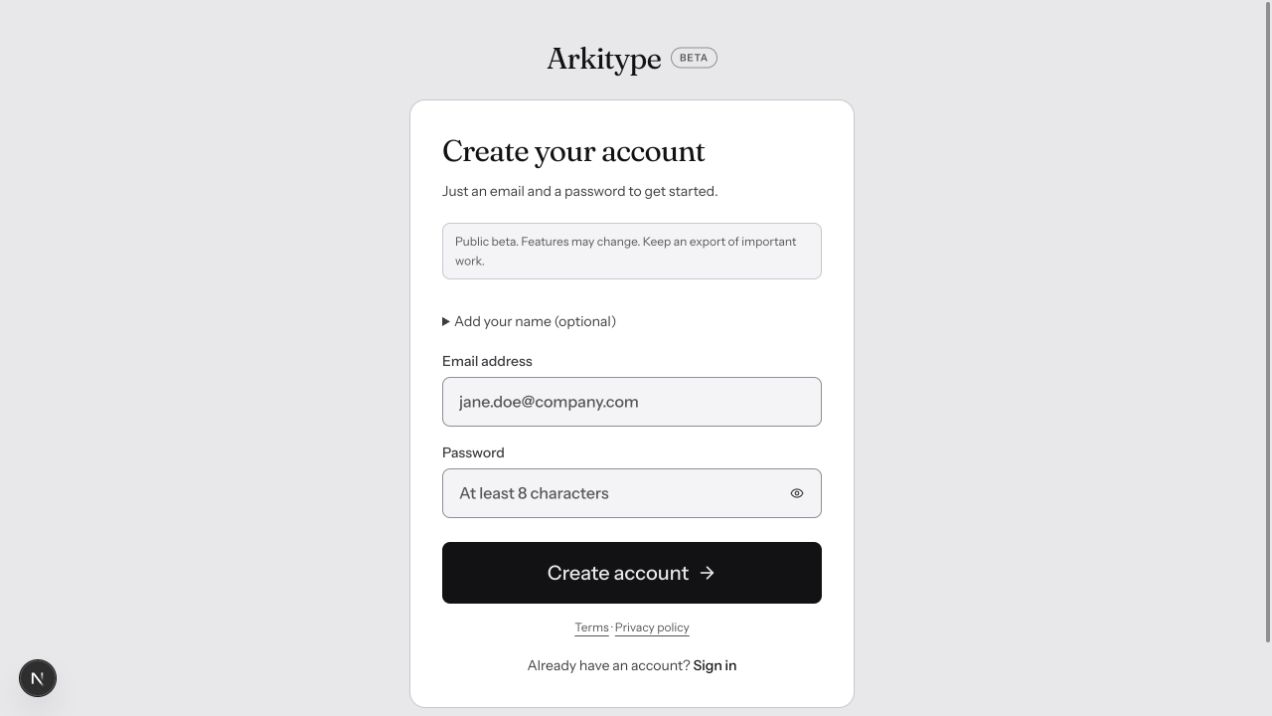 (opens the full-size image in a new tab)
What you should see
From first file to team handoff
Follow this path once, then use the rest of the manual as a reference. These are learning milestones; the builder lets you open any area at any time.
- First 5 minutes · get a result
- Complete the quick start: create a file, change a colour, preview it, and download an artifact. Success: you can see your colour in a real component and have a file on your computer.
- First session · build with confidence
- Follow Your first complete system. Check both modes, try a component, write usage guidance, then confirm the save status and reopen your file.
- First handoff · put it to work
- Use Using your exports, Figma plugin and Publishing & sharing. Success: a teammate can use the exported values or read the published system.
- As the system grows · maintain it
- Explore Variables, Working together, file inheritance under Files & clients, and Releases in Ship. Name checkpoints before larger changes and record what changed for consumers.
Quick start · 5 minutes
The shortest honest path through Arkitype. You can stop after step 4 and still have something worth looking at — the rest is handoff.
There is no first area and no last one. There is only this: a set of values, the library that reads them, and the two surfaces that read the library. Open any box on any day, change anything in it, and the arrows tell you where the change lands — which is also what the rail does, by marking a settled area needs another look the moment something under it moves.
- 1. Foundations — five small sets of values
- Colour, type, space, shape, motion. Each is a handful of numbers the rest of the system draws from. Shape reads Space, because one density preset moves the spacing base and the radius ladder together — that is the only edge inside this box.Nothing here is ever final. Editing one of these on day 200 is the normal use of the product, not a repair.
- 2. Material — what you were given
- Logos, wordmarks, illustrations. Nothing generates them and nothing waits on them, so they have no position at all: bring them the day you have them, which may be before anything else or long after.
- 3. Components — where the values become a library
- Every parameter of every component binds to a token set in Foundations. Nothing is a magic number, which is exactly why the foundations stay editable: change one and the whole library follows.
- 4. Proof, and Ship beside it — the honest surfaces
- Preview renders a whole product from your tokens with nothing hardcoded. Ship — a space of its own, not an area — writes every artifact. Both read everything upstream, so both are the first to tell you a decision was wrong.Expect to walk back from here into Foundations. That loop is the method — the dashed arrow, not a detour from the solid ones.
Make a file
From the dashboard, New file. Pick Blank system if you just want to look around, or paste a URL under From a live site to start from a brand that already exists. Name it, set a brand colour, and open it. Nothing here is permanent — every field is editable afterwards.Set the brand colour and check the warnings
You land in Colour & roles — because a brand hex is the thing most people already have, not because it comes first. Change the brand family’s seed hex and watch the whole ramp regenerate. Scroll down to the Semantic roles table in Palette & tokens: this is where a colour stops being a colour and starts being a job. If a change would push a real pairing below AA, you’ll get a named warning rather than a silent failure — you can override it, but you’ll know.Skim the rest of Foundations, change one thing in each
Typography, Spacing, Shape, Motion. You don’t have to finish them — move a type ratio, a base spacing unit, a radius slider, one duration. The point is to feel that these are upstream of everything else, not to get them right on the first pass.Go to Preview and watch it hold together
Preview renders a whole product from your tokens — nothing in the frame is hardcoded. Flip form factor (SaaS / Mobile / Marketing) and walk the top-bar Preview switch through every mode your file carries. This is the surface that tells you whether the decisions you just made actually work. Go back and fix what doesn’t — that walk back is the method, and the rail will mark what you disturbed.Ship something
Ship. Grab CSS variables or a Tailwind config if you want to use it in code today, the AI agent guide — or the Claude skill, which Claude loads by itself — if an AI coding tool is about to write that code instead, or hit Publish to get a shareable link that needs no account and no install. For Figma, download the Figma kit and import its JSON, or publish and paste the sync link into Arkitype Figma Sync (opens in a new tab).
Two things that make the first hour easier
⌘Z works everywhere in the workspace, not just where you’d expect — so poke at things. And there is no running order to fall behind: the rail opens any area at any time, and coming back to Colour after you’ve built components is the normal shape of the work, not a mistake. When you do, anything you had marked Settled that reads from what you changed says Needs another look — which is the product keeping up with you, not telling you off.
Your first complete system · a guided practice
Use a practice file named Northwind practice, brand colour #6366F1, and CSS variables as its Ships to destination. You are building a small system you can inspect and hand off. Screenshots show the built-in Meridian Capital sample; the controls are the same and its values will differ from yours.
Create the practice file
Choose New file → Blank system → Next. Enter the name and brand colour, leave the other choices at their defaults, choose CSS variables under Ships to, then Create file. You should land in Colour & roles with generated ramps. If a creation error appears, resolve it before continuing.Make one foundation change
In the right inspector, edit the brand family’s seed hex. Watch its ramp update. Open Typography in the left rail and choose your body and heading families. Leave the remaining defaults in place for this exercise. Return to Colour & roles to see how easy it is to revisit an area.
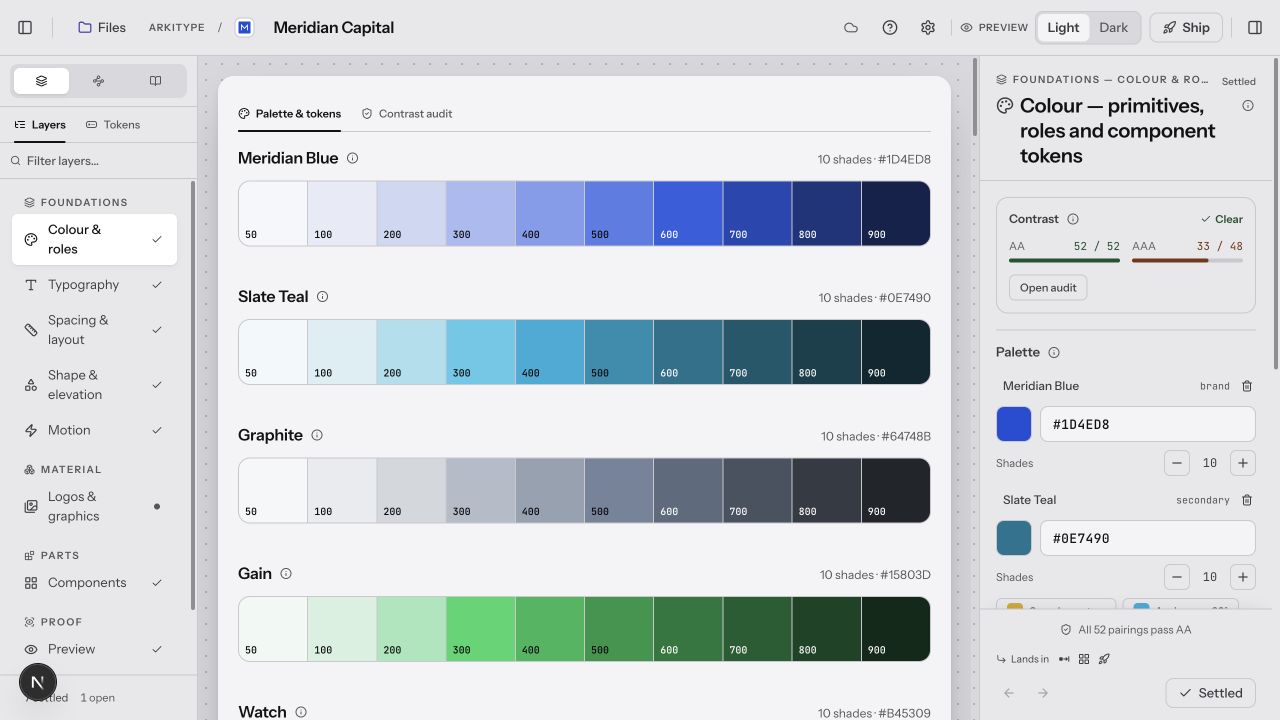 (opens the full-size image in a new tab)
Check colour in both modes
Within Palette & tokens, scroll down to Semantic roles. Light and Dark have separate columns. Open the Contrast audit tab or press Open audit in the inspector. Review failed pairings and any proposed repairs; check the pairing again after applying a change. Do not assume a pleasing brand hex works as text everywhere.Inspect a real component
Open Components and select Button. Look through its states and sizes; use the inspector to see its token bindings. Try Interactive to exercise the main preview. States and Sizes remain specimens so you can compare them. Use the top-bar Preview mode control to compare Light and Dark.Try the system on a product
Open Preview, compare SaaS, Mobile and Marketing form factors, then check Light and Dark. Return to Foundations if a label is hard to read or spacing looks wrong. Mark an area Settled when you have reviewed it; the mark is a reminder and never locks editing or export.
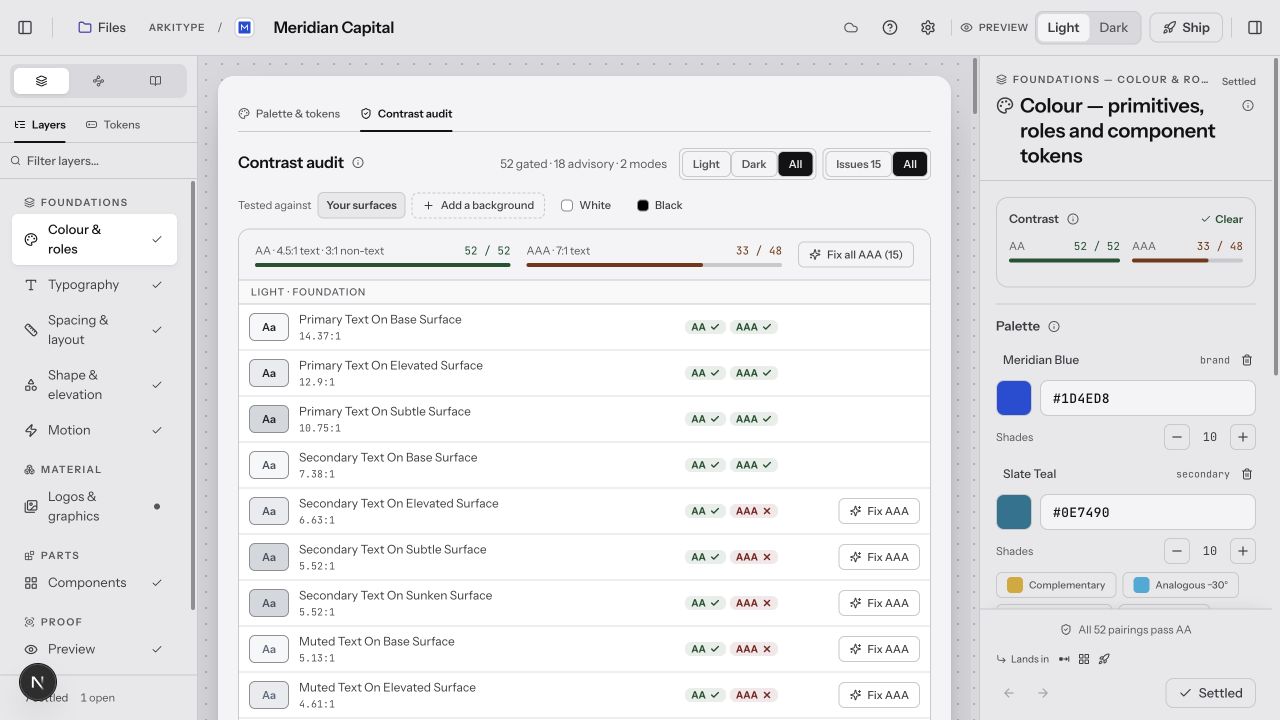 (opens the full-size image in a new tab)
Write guidance for the next person
Choose Ship → Documentation → New page and start from Getting started. Replace the template prompts with your own instructions: who owns the system, when to use a primary action, where to get the exports, and how to ask for a change. Add a Component block showing Button. Use Split or Read to check the result.Download, then optionally publish
In Ship → Export, choose CSS vars and download the CSS. See Using your exports for a working HTML example. If the system is ready for readers, choose Publish, review what will be public, and publish. Open its styleguide link in a signed-out browser and check your guidance and component pages.Prove you can return to it
Wait for a saved status with no pending errors. Press Files, then reopen Northwind practice. Check that the colour, type and authored page are still there. A successful download alone does not confirm a cloud save.
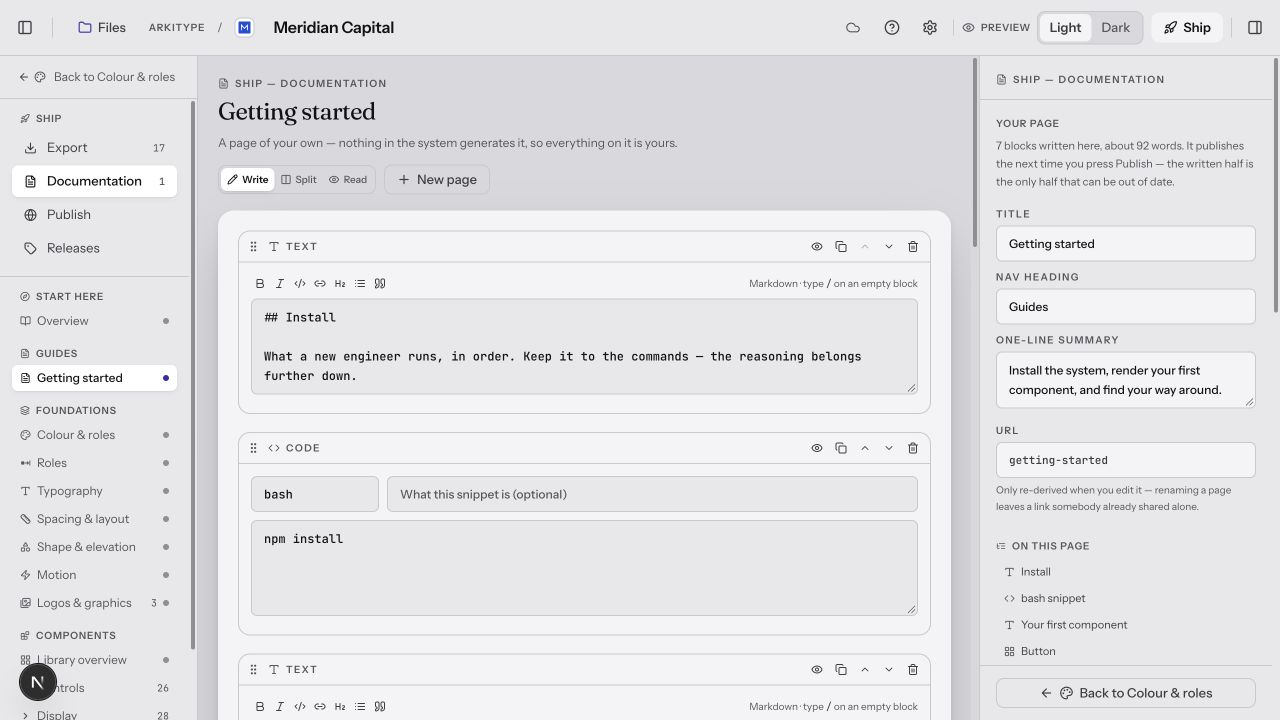 (opens the full-size image in a new tab)
You have completed the practice
Starting a file
From the dashboard, New file opens a two-step wizard. Step one picks how the file begins:
- Blank system
- The agnostic skeleton — sensible neutral defaults for every scale, no opinion imposed. The right choice when the brand doesn’t exist yet.
- From a live site
- Paste a URL and Arkitype fetches the page server-side, pulls colours out of its inline + linked CSS, ranks them by frequency and saturation, and does the same for font-family declarations (Google-Fonts-linked families are trusted first, since the name is canonical). The best-matching brand colour and, if it maps to a real loadable Google Font, a body/heading typeface are pre-filled on the dialog’s second screen. A font that can’t be loaded (a site’s self-hosted face) is skipped rather than silently applied.
- Material UI twin
- Roboto type, roomy spacing, crisp 4px corners, Material motion. A twin copies a framework’s structural DNA — corner radius, type ratio, density, native typeface, motion timing, shadow language — but deliberately never touches colour, so brand identity always stays yours.
- Tailwind UI twin
- Inter type, Tailwind radius, shadow & text scales. Same rule: structure only, no colour.
Step two names the file, optionally files it under a client, and sets a brand colour (pre-filled if you scraped a site), a rhythm preset, and two questions that each change the file rather than label it.
- Proofed on — SaaS console / Mobile app / Marketing site
- The surface the system is judged on. It writes the four layout breakpoints, opens Preview on that screen rather than on a console every time, and — for mobile — sizes every control a thumb has to hit. It is deliberately not a “platform”: a design system doesn’t have one, the same tokens ship to a console and a phone.
- Ships to — Tailwind / MUI / CSS variables / SwiftUI
- The scales the system is authored on. Every framework already has its own: Tailwind’s rounded-md is 6px and its text-2xl is 24px, MUI’s spacing(1) is 8, Apple’s body is 17pt. Authoring on some other ladder doesn’t make a system independent — it makes the export a translation, with every token landing between two of the destination’s own rungs. So picking one lays that framework’s spacing rungs, corner ladder, type sizes, depth and timing, and the file is visibly different the moment it opens. Colour and typefaces are never touched: those are the brand’s.
A framework twin is the stronger statement of the same kind, which is why it wins: picking one on the dialog’s first screen sets the shape and the typeface, and the destination then only decides which artifact Ship opens on. Everything either of them sets is an ordinary editable value afterwards — a starting point, never a lock.
Account limit
The workspace
Every area shares the same three-part frame: a rail on the left for navigating and editing tokens, the canvas in the middle, and an inspector on the right for whatever is currently selected. Both side panels drag to resize, and the width is remembered — and either can be put away entirely when you want the room. A panel switch sits at each end of the top bar — over the panel it controls — and ⌘\ clears both at once (and brings them back), and the choice sticks across reloads. Nothing is narrowed to a strip of icons: a panel is either there or it isn’t, and the switch that returns it is in the top bar, which never goes anywhere. Hiding the inspector keeps the trail arrows and Settled — they reappear as a small cluster in the canvas’s bottom-right corner.
Every one of the areas wears this same frame, so the geography is worth learning once. Both side panels drag to resize and remember the width; either can be put away entirely, and the switch that brings it back sits in the top bar directly over it.
- 1. The left rail — two switches
- The top row decides what the canvas is — Area, Variables or Manual. The row under it appears only in Area view and swaps what this panel holds: Layers (the areas under four headings, and every component under Components) or Tokens (the editable registry).Layers and Tokens leave your area exactly where it was. Variables and Manual take the canvas over — and the Area tab puts it back.
- 2. The canvas — what the area is about
- The specimen, the palette, the component studio, the product preview. It is the only part of the frame that changes completely from area to area.
- 3. The inspector — the controls for what's selected
- Every knob for the current area, and in Components every property of the selected part. The group it belongs to and where it stands — open, settled, needs another look — sit at the top.
- 4. The top bar — file, tools, modes, Ship
- The one strip that is identical in every area. Detailed in the next figure.
- 5. Panel switches — one at each end
- Each sits over the panel it controls, so which is which needs no explaining. ⌘\ (Ctrl+\ on Windows) puts both away at once and brings them back the same way.A panel is either there or it isn't — nothing collapses to a strip of icons.
- 6. Back / Forward / Settled
- The arrows retrace your own trail through the file — wherever you actually went, in whatever order (⌘← / ⌘→, or Ctrl on Windows). Settled is a reversible note to yourself, not a milestone: press it again to take it off. Hide the inspector and this cluster reappears in the canvas's bottom-right corner rather than disappearing with it.
The top bar
Identical in every area. Nothing here edits a token — it's the file, the tools, the modes, and the way out. Arkitype, between Files and the file name, is the product's name and not a link; the sync status is a cloud whose tooltip says Autosaved.
- 1. Files
- Back to the dashboard, where files are grouped by client.
- 2. The file name
- Editable in place — click it and type. There is no rename dialog.
- 3. Cloud / sync status
- The file writes as you work, and the cloud's tooltip says Autosaved. A failed solo save says Not saved and offers Retry; a save that meets a newer version says Changed elsewhere and offers Reload. Shared sessions show pending and offline status instead. Preserve local work before reloading.
- 4. Collaboration tools — when available
- Mode, presence, comments and History live beside the sync status. The exact controls depend on your role and whether the file has a live collaboration session.
- 5. ? — Help
- Open the manual, take the guided tour, or reset feature tips. Manual in the rail opens the same manual.
- 6. Settings
- Open This file, General, Plan, Team or Account. General → Appearance themes the tool; it is separate from your system's Preview mode.
- 7. Preview — your system's modes
- Every mode the file carries. Whatever the canvas is rendering resolves through this switch.Live on Shape, Components and Preview; dimmed elsewhere, with the reason on its tooltip.
- 8. Ship
- Jumps to Ship from anywhere, and looks the same whatever else is going on — there is no readiness to reach. A system with values in it is exportable, and one exported in week one and again in month six is a system in use, not one done twice.
- Files · Arkitype · name
- Files takes you back to the dashboard. The name is editable in place — click it and type.
- Autosaved
- There is no save button. A cloud icon means the file is saving or saved; hover it for the status. A failed solo save says Not saved and offers Retry; a save that collides with a change made elsewhere says Changed elsewhere and offers Reload. In a shared session the sync indicator also shows offline edits and changes waiting to upload. See Saving & recovery before reloading a conflict.
- Help → Open the manual
- Open the ? menu and choose Open the manual, or press Manual in the rail. The manual opens in the canvas. Its Full page link opens /docs in a new tab.
- ? — the tour, and the feature tips
- Five stops on the furniture — rail, canvas, inspector, the shape of the build, and automatic saving and its status — and then it stops. Everything else in the product introduces itself the first time you reach it: open Variables and Variables explains itself, land on Motion and Motion does. The card carries a drawing of what it is describing, appears beside your work rather than over it, and is gone for good once you press Got it. The ? menu reopens the tour (which puts your area, tab and panels back when you leave it) and can reset every feature tip, which is also in Settings → General → Tips.
- The panel switches — one at each end
- The switch at the far left hides and shows the left rail; the one at the far right does the same for the inspector. They sit over the panels they control rather than in the middle of the chrome, so which is which needs no explaining. ⌘\ puts both away for a full-width canvas and brings them back the same way.
- Settings → General → Appearance
- Themes the tool. This is separate from the Preview mode of your design system and does not change its tokens.
- Preview — your system’s modes
- Every mode the file carries: light, dark, and any further one you’ve added. Whatever the canvas is previewing resolves through it — so it’s live on Shape, Components and Preview, and dimmed everywhere else, with the reason on its tooltip. Colour and Variables dim it because they show every mode at once rather than one at a time; Type, Spacing, Motion and Ship dim it because nothing they hold changes per mode.
- Ship
- Opens the Ship space from any area. Export, Documentation, Publish and Releases live here. No area needs to be marked Settled before you can export.
The left rail — one switch, then another
Two rows, because they are two different decisions. The top row is the canvas switch — Area, Variables or Manual — and it decides what the middle of the screen is. The row under it appears only in Area view and swaps what this panel holds while the canvas stays exactly where it was: Layers or Tokens. They used to be one strip of four equal tabs, which is how picking “Variables” from what looked like a panel switcher threw away the surface you were working on.
- Layers
- The 8 areas under four headings — Foundations, Material, Parts, Proof — which say what kind of decision each one holds, not when to make it. A mark on the left of every row says where it stands: not opened, open, settled, or needs another look. Under Components the tree expands into every component grouped by lane, so you can jump straight to one, and the filter box at the top searches areas and components together. An open comment shows here too, as a speech-bubble chip on the row that reaches it. At the foot, a tally rather than a progress bar — it goes down as readily as up.
- Tokens
- The registry, editable without leaving whatever area you’re in: Colours, Spacing, Radius, Opacity, Font families, Font scale steps, Elevation and Motion, each with a labelled Add control and a one-click copy on every value. A Rhythm switcher sits here too, rescaling spacing and radius together. See The token registry for what each section holds.
- Variables
- The navigator for the Variables workspace — search across every variable in the file, create a new set, and (on the map) control which tiers and collections are drawn. See Variables: the table and the map.
- Manual
- This documentation, in the canvas, with its contents in the rail — so looking something up costs you nothing: not your place in the file, not a tab, not the pan and zoom you’d set up on a map. Same words as the public page, which the header still links out to for when you want to send someone a link. The contents list follows your reading as you scroll, and its search filters the sections by name. Help → Open the manual opens it too, and reveals the rail if you had hidden it.
Layers and Tokens sit beside the area you’re in. Variables and Manual are different — they take over the canvas, because one spans every area’s tokens at once and the other spans every area, and neither has a single one to live inside. Your area is untouched underneath: switch back to Layers or Tokens and you’re exactly where you left off. Anything that navigates — Ship, the tour, a jump to a token — brings the area surface back with it.
Undoing things
⌘Z and ⇧⌘Z (Ctrl+Z / Ctrl+Y on Windows) cover the whole workspace, not one panel — a colour rebind, a component binding, a renamed token, a whole ready-made variable set all undo the same way. A rapid gesture like scrubbing a slider collapses into one step rather than fifty. The shortcut deliberately stays out of the way while you’re typing in a field, where the browser’s own text undo is the right behaviour.
If you get lost
Saving & recovery
Arkitype saves edits automatically. The top-bar cloud or sync control reports whether the server has confirmed them; hover or focus it for the full status. When a save fails, the top bar says so in words beside a recovery button. Wait for saved status before closing a tab or switching devices.
- Saved / Autosaved
- The save or collaboration indicator reports completion. You can return to Files and reopen the system to confirm your work. It does not publish the system or update previously downloaded artifacts.
- Saving / Syncing
- Work is still being sent. Keep the tab open and let it finish. In a shared session, the pending count tells you how much remains.
- Not saved · Retry, or a sync error
- The server has not confirmed your edits. Hover or focus the warning for the reason. Check your connection and choose Retry or the sync retry control. Preserve an offline copy if available before leaving. Do not clear browser data while unsent work remains.
- Changed elsewhere · Reload
- Another save changed the server file. Avoid continuing in multiple tabs. Preserve your local work before reloading, then compare it with the current server version. Independent changes may merge; edits to the same value can require a decision.
- Offline
- A cached collaboration file can remain editable on this device when browser storage is available. Pending edits wait for reconnection. First-time sign-in, opening an uncached file, invites, billing and publishing require a connection. Offline availability depends on a previous online visit and the production app cache.
An interrupted session
Keep the device copy
If the dashboard says Your unsaved work is still here, choose Download recovery copy. Review later leaves it available through Review unsaved changes. Downloading does not overwrite the server file.Compare before removing it
Keep the downloaded-recovery.json, reopen the server file, and compare the values that matter. Reapply missing edits deliberately. The recovery JSON is a full device snapshot; it is not a Figma kit, a DTCG token import, or an.aktpending-operation file. There is no automatic recovery-JSON restore button.Confirm the work is preserved
Check the download and the resulting server save before choosing I have saved it — remove device copy. If you cannot reconcile it, retain the JSON and contact support.
For a cached shared file, Settings → This file → Offline copy → Export .akt preserves the system plus queued collaboration changes. Import .akt requires the same original file and replays its pending operations; it does not create a new file. For an account-level export, use Settings → Account → Download my data.
Before a large edit
Files & clients
The dashboard groups files by an optional client — type a name once (when creating a file, or via a card’s “move to client” action) and that client exists; there’s no separate “manage clients” screen to maintain in parallel. Renaming a client relabels it everywhere at once; ungrouping a client unfiles its files without deleting them. Every file autosaves as you work — there’s no explicit save action to remember.
One system built on another
A sub-brand, a white label, or three products that are recognisably part of one family. Settings → This file → Built on points a file at another, takes its values, and then behaves like a dependency: pinned to a release, told when a newer one exists, and showing the diff before it takes it.
Deliberately not a live link. A child whose colours changed the moment somebody edited the parent would move the published styleguide, the npm package and the Figma library under a team that made no decision. Pinning to a release also makes the comparison mean something: “three tokens differ” says nothing when one of them is a colour somebody is dragging a slider through.
Editing an inherited token is how this system takes it over, and a pull then leaves it alone. That is recorded at the moment of the edit rather than worked out by comparing, because comparison cannot tell “we chose a different blue” from “the parent changed its blue afterwards”, and those want opposite treatment. A pull never deletes: a token this system added is this system’s.
What a card tells you before you open it
A design file is not a document you can skim from its name, so the card says what is inside it: the palette across the top is the file’s own brand, secondary and neutral ramps, and under the name are the facts — how many tokens it holds, the type family it’s set in, how many brand marks are on its shelves. There used to be an eight-segment progress meter here as well, and it was removed for the same reason the numbers went: a system with a palette and nothing else may be exactly finished, and “0 of 8” called it abandoned.
One client, one set of marks
Filing two systems under the same client does one thing inside the builder: on Logos & graphics, each file offers the other’s logos and illustrations — listed by name with the files they came from, added one at a time or all at once. It is an offer and never a copy, because “a client keeps the same marks” is true often enough to be worth a shelf and not often enough to be automatic.
Colour & roles
The canvas carries a real tab strip — Palette & tokens and Contrast audit. Palette & tokens is one stop for two concerns that used to be called separate tabs and still read as one scroll — Colours (primitives) and Roles (meaning): generate ramps, then decide what each shade means. The audit used to sit on top of that scroll, a report standing between you and the palette every time you came to change a colour — it now has its own tab, reached from the strip or from Open audit on the health score in the aside.
The canvas is the palette; the inspector is where it comes from. Nothing in the ramp is typed by hand unless you deliberately pin it — every shade is generated from the seed beside it, which is why one field change repaints the entire area.
- 1. Palette & tokens / Contrast audit
- A real tab strip. The palette and the roles are one scroll; the audit is its own tab so a report never stands between you and the colour you came to change.The badge counts pairings currently below AA.
- 2. The seed — one hex per family
- Type a hex, paste one, or open the colour well beside it for hue and opacity together. Families are free-form: add, rename or remove as many as you like.Every shade in that family regenerates, and every role bound to it follows.
- 3. Shades — the step count
- 3 to 12 steps per family. Each shade targets a fixed WCAG relative luminance, so a 600 from any hue carries the same visual weight.Adds or removes rungs from the ramp on the left.
- 4. Suggestion chips
- Harmony-derived seeds — complementary, analogous, split, triadic rotations of the brand hue — so a second or third family never starts from nothing.
- 5. The health score, and Open audit
- 17 curated role pairings, plus every pairing your token groups imply, checked in every mode the file carries against AA (4.5:1 body / 3:1 large) and AAA. The audit tab gives the exact count for your file. Fix all AA repairs what it safely can in one go.Opens the Contrast audit tab — the same place the strip goes.
- 6. The live guard
- Rebind a role to something that would drop a real pairing below AA and you get a warning naming the pairing and the ratio, with Use anyway / Cancel. It warns; it never silently blocks a deliberate choice.
- 7. Pinning a shade by hand
- Any generated swatch can be locked to an exact hex. A marker shows it is no longer auto-generated, with one click to hand it back to the generator.
Colours — building the ramps
Families are a free-form list — add, remove, or rename as many as you like; the defaults are Brand, Secondary, Neutral, Success, Warning, and Error. Each family is one hex seed plus a shade count (3–12 steps). Any generated swatch can be pinned to an exact hex by hand — a marker shows it’s no longer auto-generated, with a one-click reset. Suggestion chips offer harmony-derived seeds (complementary, analogous, split, triadic rotations from the brand hue) so a second or third family never starts from nothing.
How the ramp is actually generated
Roles — mapping meaning onto values
Components never read a raw colour. They read a semantic role — like “primary text” or “success feedback background” — and each role resolves to a different primitive ramp step per mode, which is what makes light and dark “one system” instead of two. The default set is 9 groups (Surface, Text, Action, Border, four Feedback groups and Opacity) and 37 roles, all editable — add a group, add a role to any group, or remove one. A token’s colour well — the swatch beside its value, on a ramp step or a role alike — opens a small picker with hue and opacity together; opacity used to be a slider parked on every row and is now a 67% chip that only appears once a token isn’t fully opaque, so the rows stay readable and the value field beside it still takes a typed /NN if you’d rather not open the picker at all.
A live guard checks contrast the moment you rebind a role: if the change would drop a real pairing below AA, a warning names exactly which pairing failed and by how much, with Use anyway / Cancel — so the tool warns, but never silently blocks a deliberate choice. The Contrast audit tab checks 17 curated role pairings, plus the interaction-state and border pairings whose tokens exist, plus every text- or border-on-surface pairing a token group implies — in every mode the file carries, so adding a mode adds a full set of checks; the tab shows the exact count for your file. Each is scored against AA (4.5:1 body text / 3:1 large text or UI components) and AAA (7:1 / 4.5:1), and the tab keeps a running count of anything below AA. You can also declare backgrounds the derived pairings can’t find — pure white, pure black, a brand fill, an @role that tracks the system — and every text and border token in the file is checked against each one, in every mode, the same as any surface the system owns. A declared background is pinned rather than derived, so a one-click repair can retarget the text but never move the background you named.
The chart palette
Below the contrast and colour-vision panels, on the same tab, is a palette for data rather than for interface. It is there rather than beside the ramps because it answers the same question they do — will somebody be able to tell these apart — and because it is measured rather than chosen.
Series colours are generated from your brand hue by walking the colour wheel in golden-angle steps, with lightness following its own sequence underneath so no two series differ in hue alone. Then every pair is measured, under normal vision and under each deficiency, and any pair that comes out too close is moved until it clears. That second pass is the difference between a palette that looks fine in a row of swatches and one that survives eight thin lines on a shared axis — the case a categorical palette actually has to handle, which is why the panel draws a line chart and not a row of squares.
Alongside the series are two continuous ramps: sequential for a quantity with an order, and diverging for one with a meaningful middle. A diverging ramp asked for an even number of steps is nudged up to an odd one, because without a centre step there is no zero to point at. Any series colour can be pinned by hand, with a one-click reset back to the generated value.
The limit the generator can’t repair
Bringing tokens in from somewhere else
Import tokens, on the Palette & tokens tab beside the mode columns, reads a W3C Design Tokens (opens in a new tab) document — the format Tokens Studio, Style Dictionary and most of the ecosystem read and write. It is tolerant about spelling on purpose: the spec’s $value/$type, the unprefixed value/type that Tokens Studio still writes, a group that declares its type once for everything beneath it, and the plural spellings half the ecosystem uses.
Nothing is written until you say so. The dialog shows a plan first: which tokens are new, which change and from what value to what value, and which are already identical. Unchanged rows are shown rather than filtered away — re-importing a document you exported an hour ago should read as a screen of unchanged rows, and that is the round trip proving itself. Anything the file carries that this tool cannot hold as a token is listed separately with the reason, not silently dropped: a shadow is an elevation level here, and line height and letter spacing belong to a type step. Shadows can be taken anyway with a tick, landing on the elevation ramp where they belong. Applying is a single edit — one undo, one change for anyone editing alongside you.
Typography
One base size and one scale ratio generate the whole type scale — pick a named ratio (Minor Third 1.2, Major Third 1.25, Perfect Fourth 1.333, Golden Ratio 1.618) or dial in any custom value, and choose how generated sizes round (raw decimals, nearest half pixel, or whole pixels).
A base size and a ratio produce every step; each step can then be overridden on its own row without breaking the ones either side of it.
- 1. Base size
- The size of body copy, and the anchor the scale is built around.Every step in the specimen rescales — up and down from this rung.
- 2. Scale ratio
- Type any value, or take a named one: Minor Third 1.2, Major Third 1.25, Perfect Fourth 1.333, Golden Ratio 1.618.The gaps between steps widen or tighten. A big ratio makes a dramatic scale.
- 3. Rounding
- How generated sizes land: raw decimals, nearest half pixel, or whole pixels.
- 4. The step list
- Eight by default, xs through 4xl. Add or remove freely — only the base step is permanent.Adds and removes rows in the specimen.
- 5. Per-step overrides
- Every row can pin an exact size and line-height, and carries its own font role (Display / Heading / Body / Mono) and weight — a heading step needn't share a family with body copy.Line-height tightens automatically as size grows until you pin it by hand.
- 6. Preview text
- Editable. Put your own headline in it — a scale that works on lorem ipsum and fails on real product copy is a scale that fails.
- 7. Pairing presets
- Sets all four font roles at once from a curated list — Modern System, Editorial, Geometric Minimal, Literary and more. Each role is otherwise bound through a Google Fonts picker.
The scale itself is a dynamic list of steps (8 by default: xs through 4xl), each independently able to pin an exact size and line-height override, and each assigned its own font role (Display / Heading / Body / Mono) and weight — a heading step doesn’t have to share a family or weight with body text. Steps beyond the defaults can be added or removed freely (the base step can’t be deleted). Line-height tightens automatically as size grows unless you’ve pinned it by hand.
Tracking — letter-spacing — is generated the same way, on the curve every type foundry applies and most design systems never write down: it opens up as text gets smaller and tightens as it gets larger, because the spacing that makes 10px captions legible makes a 48px headline look like it is falling apart. It is zero at your base size, which is the size the scale is anchored to, and it ships in em rather than pixels so it stays a ratio — a headline tightened at 48px is still correctly tightened when someone views it at 96px. Pin any step’s tracking by hand the same way you pin its size, and the specimen redraws with it. It reaches every export: --ark-tracking-* in CSS, tracking-4xl beside text-4xl in Tailwind, a number variable in Figma, and points-per-style in SwiftUI.
A step can also break away from its role entirely and pin a family of its own — the one display face used for h1 and nothing else is a real thing, and making it a fifth role would mean inventing a role nobody names. A pinned step is marked as such, and everything that has to account for the system’s fonts reads the pins as well as the roles: the Google Fonts URL in every export, the self-hosting scaffold, the font list in the handoff. Without that, a pinned family renders correctly only on the machine that happened to have it installed — invisible to whoever picked it, total for everyone else.
Each font role is bound via a Google Fonts picker, and a one-click pairing-preset panel sets all four roles at once from a curated list (Modern System, Editorial, Geometric Minimal, Literary, and more). A specimen list renders every step at real size/weight/family against editable preview text, and an “in context” section shows the scale inside three realistic layouts — Article, Split Columns, and a UI Card — with adjustable measure (paragraph width) and spacing.
When a font isn’t installed
@font-face rule you’ll need to self-host it properly.Iconography
Icons live in Typography because an icon is almost never alone. It sits next to a label, and the two questions that matter — does it look the same weight as the text, is it the right size beside it — are both questions about type. The specimen draws each size next to the type step it will actually appear with, rather than at some ratio of itself.
Material Symbols is a variable font, so a system decides its weight, fill and grade the same way it decides a type scale. Grade is the one worth knowing: it adjusts stroke thickness without changing an icon’s width, which is exactly what dark mode needs — light strokes on a dark ground bloom and read heavier, so a slightly negative grade in dark keeps them looking the weight they look in light, and nothing reflows.
Optical size is not a preference and is not offered as one. opsz tells the font what size it is being drawn at so it can thicken strokes and open counters for small renderings; no CSS reads a computed font-size back into a variation setting, so the export emits a class per size with the two paired. That is why a 16px icon used to look thin and muddy beside 16px text.
Spacing & layout
A rhythm preset — Compact, Standard, or Spacious — rescales the base spacing unit and corner radius together as a starting point; every value stays editable afterward, it’s a preset, not a lock. The base unit (2–12px) generates a ladder of spacing steps as multiples of itself; the first eight rungs are permanent (components depend on them), further rungs can be added or removed, and any rung can be pinned to an exact pixel value.
Every gap in the system is a multiple of one number. Change that number and the whole ladder moves together, which is what keeps rhythm consistent across components nobody designed side by side.
- 1. Density — Compact / Standard / Spacious
- A starting point, not a lock: it rescales the base spacing unit and the corner radius together, and every value stays editable afterwards.Touches Spacing and Shape at once — this is the one control that reaches across two areas, and the only edge inside Foundations.
- 2. Base unit (2–12px)
- The atom. Every rung on the ladder is a multiple of it.All eight rungs recompute, and every component's padding with them.
- 3. A rung — multiplier and pixel value
- Drag the multiplier, or pin the rung to an exact pixel value when a multiple won't do.
- 4. Add step
- The first eight rungs are permanent — components depend on them. Anything beyond can be added and removed freely.
- 5. Breakpoints
- Free-text pixel values with plain-language descriptions of what each is for, drawn as a relative width chart.These become real layout variables, so design and code reflow at the same widths.
- 6. Rhythm in practice
- Your spacing steps applied to real flex layouts, so a multiplier change is felt rather than read as a number.
Breakpoints (sm / md / lg / xl) are free-text pixel values with plain- language descriptions of what each is for, visualised as a relative width chart — these become real layout variables, so design and code reflow at the same widths. A “rhythm in practice” preview applies your spacing steps to real flex layouts so a multiplier change is felt, not just read as a number.
The column grid
Breakpoints say when the layout changes. The grid says what it changes into — how many columns, how wide the gutter, how much room at the edges — at each of them. Without it every app consuming the system invents its own, which is how two pages in one product end up on a 12-column grid and a 16-column grid.
It is per breakpoint, because a 12-column grid on a phone is twelve slivers: 4 / 8 / 12 is the shape almost every published system converges on, and the reason is arithmetic rather than fashion — 12 divides by 2, 3, 4 and 6, so a half, a third and a quarter are all expressible. A breakpoint with no grid of its own inherits the one below it, which is how the system says “nothing changes here”. Gutter and margin are both named rather than derived from each other: a gutter is between columns, a margin is outside the outermost ones, and they behave differently at a container’s edge. It exports as --ark-grid-* with a media query per step, plus .ark-container and .ark-grid so four people do not write the same three lines four ways.
Shipping more than one rhythm
A system that has to run at two sizes — a marketing page and an operations table, a browser and a phone — can ship an axis rather than a second set of tokens. Density and platform are the two offered.
An axis is not a mode, and the distinction is the whole feature. Density is orthogonal to appearance, so spelling it as a mode needs light-compact, dark-compact, high-contrast-compact — a column per combination, each a full copy of every token, each drifting from the others the first time somebody edits one. An axis is one dimension applied on top: [data-ark-density="compact"] sits beside .dark in the cascade and neither knows about the other.
It carries multipliers over the scales that are supposed to move — spacing, type size, radius — and nothing else, because a compact interface is not a differently coloured one, and because the moment it becomes a hand-maintained second column it stops tracking the first. The one exception is the minimum target size: WCAG 2.2 asks for 24×24, Apple’s guidance says 44pt and Android’s says 48dp, and those are floors rather than ratios. The switch in the top bar only changes what the preview shows — every value is exported either way.
Shape & elevation
A single radius-scale slider (0×–2.5×) scales the whole radius ladder at once — the two extremes, “none” and “full”, never move — and any individual step can still be pinned to an exact pixel value.
Elevation here is a structured token — X, Y, blur, spread, colour and opacity — not a CSS string, and each level is stored separately per mode. That is why both ramps are drawn at once no matter which theme the tool itself is wearing.
- 1. Radius scale (0×–2.5×)
- One slider for the whole ladder.Every rung scales together — except none and full, which never move.
- 2. A rung's pixel field
- Any individual step can still be pinned to an exact value, independent of the slider.
- 3. Both mode ramps, always
- Light and dark elevation are previewed simultaneously, so dark-mode depth is never invisible because you happen to be working in light.
- 4. The editor's own mode switch
- Picks which mode you are editing. This is separate from the top bar's Preview switch and from the tool's appearance.Every field below it now writes to that mode's copy of the level.
- 5. X / Y / Blur / Spread / Opacity
- The shadow's actual parts, editable as numbers. Exports compile them into whatever form the target needs.
- 6. Add level
- Flat / Low / Medium / High are the defaults, not the limit.
Elevation is a fully structured shadow token, not a CSS string: each level (Flat / Low / Medium / High by default) has independent X, Y, Blur, Spread, Colour, and Opacity — and critically, each level is stored separately per mode, picked from the editor’s own mode switch. Every mode’s ramp is previewed at once, regardless of which theme the tool itself is in, so dark-mode depth is never invisible while you’re working in light mode (or vice versa). A composed preview card applies radius + elevation + spacing together in one realistic surface, in whichever mode the top bar is previewing.
Opacity is a scale, like every other primitive
Between radius and elevation sits a third ladder: opacity — eleven named steps from 0 to 100, each editable, each resettable to its generated value. It is a flat ladder rather than a generated curve, because a disabled control at 38% and a scrim at 60% are decisions, not a progression.
What makes it a primitive rather than a number is where it can be used. Any colour reference takes a trailing alpha — brand-600/40 is that ramp step at 40% — and that suffix can itself be a variable: brand-600/opacity:40 points at the primitive step, and brand-600/@disabled-alpha points at a semantic opacity token. Change the token and every disabled state in the system moves together, which a literal 38 typed into forty bindings can never do.
Motion
Three named durations — fast (hovers, toggles, colour shifts), base (reveals, dropdowns, accordions), and slow (modals, page-level transitions) — plus a list of named easing curves, each a free-text CSS timing function (any keyword or cubic-bezier(...)). A curve playground animates a ball along a track using the real duration + easing combination so the timing is felt, not just read as numbers, and a relative bar chart compares the three durations at a glance.
Timing is the one part of a design system nobody can review as a number. The playground exists so you judge it the way a user will.
- 1. The three durations
- fast for hovers, toggles and colour shifts; base for reveals, dropdowns and accordions; slow for modals and page-level transitions. The hint under each field says which is which.The comparison bars redraw, and so does every component that animates.
- 2. Easing curves
- Free text — any CSS timing function, keyword or
cubic-bezier(…). Add as many named curves as the system needs.Each curve's ball on the left animates with exactly what you typed. - 3. Play
- Runs that row with the real duration and the real easing together. Press it after every change — this is the review.
- 4. Demo duration
- Which of the three durations the playground animates at. It changes the demo, not the token.
- 5. Durations compared
- The three values as relative bar lengths — the fastest way to see that 'fast' and 'base' have drifted too close together.
Every interactive part in the component library — buttons, inputs, toggles, the rest — already consumes these duration and easing tokens. Nothing in the system animates ad hoc.
Logos & graphics
The half of a system nothing can generate. Colour, type, spacing and motion all come out of a rule; a wordmark does not, and neither does the illustration on your 404 page. Upload them here and they live inside the design file itself, so they travel with the system into a shared link, a published styleguide and an offline copy rather than sitting in a folder the next person can’t find.
This area was the first one to lose its number, back when the other eight still had theirs — nothing here is derived from Colour or Motion, nothing downstream waits on it, and a system whose wordmark lands in week three was not built out of order. All of that turned out to be true of every other area too, which is why none of them carries a position now. Bring the marks the day you have them.
Two shelves — logos & marks (lockups, app icons, favicons, mono versions) and graphics & illustrations (404s, empty states, error screens). Everything finer than that is the name, and the name is free text: logo-lg, logo-mark, illustration-404. The suggestions beside a fresh card fill the field in one press and constrain nothing — a system that needs logo-lockup-reversed should have it. Each asset can be tagged for a light or dark backdrop, which is what the gallery draws it on, and carries a note for whoever picks it up next.
The colours come with the mark. A logo is usually the only authoritative statement of what a brand’s colours actually are, so scanning one ranks its dominant colours — vivid before flat, greys and near-whites discarded — and offers each of them to your primary or secondary ramp, to any other family in the file, or to a new one. Picking one reseeds that ramp, and every shade and every role pointing at it follows.
One client, one set of marks. Two files filed under the same client on the dashboard each offer the other’s logos and graphics — listed by name with the files they come from, added one at a time or all at once. Nothing copies itself: a second product under one brand usually wants the same wordmark and its own illustrations, and which of the two this is stays your call. Remove one from this file and it is gone from this file only.
SVG is stored exactly as uploaded; a large raster is fitted to 1024px and re-encoded, and the surface says so rather than resampling quietly. The weight meter in the inspector is a speed gauge, not a disk limit: these bytes are part of the document, which is saved as one record every time you edit anything.
Every other foundation comes out of a rule. These come off somebody's disk — so they are stored in the file itself, named the way a developer will ask for them, and read for the colours they are actually made of.
- 1. Two shelves, and nothing finer
- Logos & marks, and graphics & illustrations. Everything more specific than that — lockup, mono, reversed, app icon — is the name, not a category to be squeezed into.
- 2. The name is yours
- Free text, slugged and kept unique:
logo-lg,illustration-404. The suggestions under a fresh card fill it in one press and constrain nothing.It is what a download is called and what a handoff sheet lists. - 3. Light, dark, or either
- Which backdrop the variant was drawn for. It is what the plate behind it shows — a white mark on a white card looks like a failed upload, and this is how you catch a variant tagged the wrong way round.
- 4. Scan colours
- Ranks the mark's dominant colours — vivid before flat, greys and near-whites discarded — and offers each one to a ramp.Picking Primary reseeds that family; every shade and every role pointing at it follows.
- 5. Weight
- These bytes are part of the document, which is saved whole every time you edit anything. The meter is a speed gauge, not a disk limit.
Components
90 components across four lanes, all reading roles, scales, and motion tokens exclusively — remap a role in Colour & roles and every component that uses it follows, with nothing to update by hand.
The inspector is the point of this area. Read down the right-hand column: not one field holds a colour or a pixel value — each one names a token you set in the Foundations areas. Change the token and every component using it moves.
- 1. The component list, in lanes
- Controls, Display, Navigation and Patterns. Lanes collapse, so you can put away the three you aren't working in.
- 2. Templates
- Start this component from Material 3, Apple HIG, IBM Carbon or another ready-made system, then edit from there.Replaces the component's structure — but never strands an option you had set.
- 3. The live preview, at real size
- Zoom, fit-to-width, and a light/dark switch for the preview itself. Nothing here is a mockup — it is the component rendering from your tokens.
- 4. Variants, states and sizes — all at once
- Every style variant, every interaction state (default, hover, focus, active, disabled) and every size, rendered together so a token that only works in one of them is obvious immediately.
- 5. Container — the bindings
- Background, border colour, border width, corner radius, padding X and padding Y. Each field names a token:
action-primary,radius-sm,space-3.Edit the token upstream and this component follows — you never come back here to sync it. - 6. Options and label
- The component's own parameters — size, full-width, loading, label text, prefix and suffix icons. These shape the component; the bindings below shape how it looks.
- 7. Lifecycle — Ready / Beta / Deprecated
- Status travels with the component into the handoff docs and the Figma kit, so consumers know what they're allowed to rely on.
Controls (26)
ButtonIcon buttonButton groupInputTextareaSelectSearchCheckboxRadioSwitchSliderStepperChipToggle buttonSplit buttonCombo boxMulti-selectPassword fieldOne-time codeRange sliderCheckbox groupRadio groupDate pickerTime pickerColour pickerFile upload
Display (28)
BadgeTagAvatarTooltipProgressProgress ringMeterSpinnerInline loadingSkeletonAlertToastStatSparklineStatus dotRatingAvatar groupThumbnailDividerKeyboardHelp textDescription listBlockquotePopoverHover cardScroll areaEmpty stateCode block
Navigation (16)
TabsNavbarSidebarBreadcrumbsStepsPaginationBottom navigationNavigation railMenu barDropdownContext menuCommand paletteTree viewJumplistLinkSkip link
Patterns (20)
Page headerToolbarFilter barModalTableCardPricing cardList itemFeed itemAccordionBannerFieldForm sectionSetting rowStat gridTimelineComment threadCarouselSplit paneDrawer
Most components take a Size (Small / Medium / Large) and a Corner radius bound to the radius scale by name; a few — like radio, switch, or breadcrumbs — deliberately skip radius since they don’t have a meaningful corner. Underneath, every part/slot/state combination (default, hover, focus, active, disabled) can bind independently to a token, which is the mechanism that makes “every state, every variant” actually hold together.
Each component also carries a Lifecycle setting — Ready, Beta, or Deprecated. It changes nothing about how the component looks; it’s a note to whoever picks the system up, and it shows as a badge on the published styleguide so a teammate can tell “use this” from “we’re replacing this” without asking.
Compound components nest instances, not copies
A page header does not draw a button, a badge and a breadcrumb trail. It instances the Button, the Badge and the Breadcrumbs already in your file, and stores only what each one should say. That is the whole reason a system holds together as it grows: there is one button, in every place a button appears.
- 1. One molecule, bound once
- Button's colours, corner, padding and label type live on Button and nowhere else. Every organism that embeds it reads that same configuration.Rebind Button's fill here and it moves in the alert, the toast, the empty state and the banner — and every other organism that slots a Button — at the same moment.
- 2. The slot carries content, never style
- An Instances card in the inspector offers label, variant and size — the things that differ between two placements of the same button. There is deliberately no colour field on it: a slot has no way to override the molecule, by construction.
- 3. The same nesting survives the export
- In the Figma bundle these are real nested instances of the Button component set, not flattened frames — so swapping a variant in Figma behaves the way a designer expects.Where a molecule was left out of an export, the organism falls back to a drawn stand-in rather than failing.
A page header does not draw its own button. It instances the Button already in your file — and its status pill is the Badge, and its trail is the Breadcrumbs. The same rule runs through the whole library: a toolbar’s buttons are Icon button, a multi-select’s tokens are Chip and its menu boxes are Checkbox, a comment thread’s faces are Avatar and its composer is Textarea, a setting row’s control is whichever of Switch, Checkbox, Select or Button you named.
Each of those placements gets an Instances card in the inspector, and the card offers content only — a label, a variant, a size, whether an icon shows. There is deliberately no colour, spacing or radius field on it: a slot has no way to override the component it embeds, by construction. Which means the inverse is guaranteed too — rebind Button’s fill once and it moves in the page header, the pricing card, the modal and the comment composer at the same moment, with nothing to hunt down.
The nesting survives the export. In the Figma bundle these are real nested instances of the Button component set rather than flattened frames, so swapping a variant on one behaves the way a designer expects. If a molecule is left out of an export, the organism draws a plain stand-in instead of failing.
The rule, stated once
Templates: a different starting point
Every component in the library carries five alternates to the way it is shaped, each modelled on a system that has been through years of real use. A template supplies corners, stroke weights, density and label weight — and nothing else. The colour stays yours.
- 1. Arkitype (Original) is a card like any other
- It is simply the first one in the picker, and it supplies nothing at all. Leave it alone and every component renders exactly as it always has.
- 2. Marked Layout — a rebuild, not a restyle
- Ten compound components (Alert, Toast, Banner, Card, Empty state, Accordion, Dropdown menu, List item, Feed item, Popover) swap their whole arrangement in all five system templates — Material 3, Apple, Carbon, Atlassian and Fluent. The badge tells you which kind of change you are about to make before you make it.
- 3. Shape, never colour
- Every value a template supplies is a corner, a stroke weight, a density multiplier or a label weight. A Carbon alert is drawn in your ramp, in whichever mode you're previewing.It lands underneath your own bindings: a part you have already rebound keeps that binding, and a radius or padding you set yourself wins over the template's.
- 4. Nothing goes dead
- Every option keeps working across a switch — tone, icon, dismissible, action, counts, labels. A control that silently stops doing anything is the bug people notice first, so a template is not allowed to strand one.
- 5. Once, then forget
- This is a decision you make at most once per component, which is why it sits behind one small toolbar button rather than an area of its own. Your choice saves with the file, exports with it, and shows on the published styleguide.
The way a component is shaped — how round its corners are, whether a field draws a box or a single underline, how tight its padding runs — is one opinion, and it’s the one people recognise a design system by. Every component in the library carries five alternates to that opinion, each modeled on a system that has been through years of real use. Open Templates in the studio toolbar and pick from:
- Material 3 — Google / MUI
- Fully-rounded controls, tonal filled surfaces with no borders, generous corners, filled fields with a single underline, and a pill behind the active nav item.
- Apple (HIG) — Human Interface Guidelines
- Continuous 10px controls and 18px surfaces, borderless filled fields, elevated neutral cards with soft shadows, circular checkboxes and the tall capsule switch, and a tinted segment behind the active item.
- IBM Carbon — IBM
- Square corners everywhere, hairline rules, flat fills without shadow, productive (tighter) density, a single bottom rule on fields, and a square bar marking the active item.
- Atlassian — Atlassian Design System
- The tightest corner of the five at 3px, 8px on surfaces, borderless cards on resting elevation, and sunken fields inside a heavier border that lights up on focus.
- Fluent 2 — Microsoft
- 4px controls and 8px surfaces, a 1px stroke on everything with a heavier accent stroke along a field’s bottom edge, semibold labels, and a short rounded bar under the active item.
A template changes shape, never colour. Every value it supplies is a corner, a stroke weight, a density multiplier or a label weight, and each one lands underneath your own bindings: a Carbon alert is drawn in your ramp, in whichever mode you’re previewing, and any part you’ve already rebound keeps that binding. Every option keeps working too — tone, icon, dismissible, action, counts, labels — so nothing in the inspector goes dead when you switch. Where you set a value yourself (a radius, a padding, an elevation), your value wins over the template’s.
Ten compound components go further and swap their whole layout in all five system templates — Material 3, Apple, Carbon, Atlassian and Fluent — Alert, Toast, Banner, Card, Empty state, Accordion, Dropdown menu, List item, Feed item and Popover. Their cards in the picker are marked Layout so you can tell a rebuild from a restyle before you pick one.
Once, then forget
The 4-skeleton rule
Preview
The reward moment — and the stress test. Preview renders a complete, realistic product entirely from your live tokens; nothing in the frame is hardcoded. Change a colour or a spacing step and the whole product redraws.
A whole product rendered from your tokens — nothing in the frame is hardcoded. Walk the top bar's Preview switch through every mode the file carries, then go back and fix what doesn't hold.
- 1. Form factor — SaaS / Mobile / Marketing
- Three completely different pressures on the same tokens: a dense desktop console, a touch layout, a wide marketing page.Re-renders the whole canvas from scratch. Spacing that survives all three is spacing that works.
- 2. Industry
- Fintech, Healthcare, E-commerce — content only. It changes the copy and the data, never a token, so you're stress-testing against realistic text lengths.
- 3. States — product only / show all states
- Switches the frame between a working product and every interaction state laid out side by side.
- 4. Structures
- Swap the skeleton behind the table, the tabs and the modal without touching a component.Shows the same tokens carrying a different information density.
- 5. The Preview mode switch
- This area is one of the three where the top-bar switch is live. Every mode the file carries — light, dark, and any you have added — resolves through it.The canvas re-resolves every semantic role to that mode's value.
- 6. Canvas zoom
- Pull back to judge the page as a composition rather than as a stack of components.
Two dropdowns control what you’re looking at, and they do different jobs on purpose:
- Form factor — changes the shape
- SaaS is a dense desktop console (sidebar, stat deck, data table). Mobile is a real 390px phone frame, where touch targets have to hold a 44pt minimum. Marketing is a wide editorial page that leans on the big end of your type scale. Same system, three very different pressures.
- Industry — changes only the words
- Fintech, Healthcare, or E-commerce swaps the copy, numbers, and icons — never the styling. It’s there so you can show a client their own vocabulary without building them a bespoke mockup.
Any form factor pairs with any industry, so three layouts and three content packs give you nine screens to check — all generated, none hand-built. If the system holds up across all of them, it ships.
The same panel also lets you switch Rhythm (Compact / Standard / Spacious) to see the system tighten and loosen, flip on an all-states strip that shows every interactive state at once (default, hover, focus, active, loading, disabled), swap the Table / Tabs / Modal skeleton and watch the product reflow, and zoom the canvas. Check every mode with the top-bar Preview switch while you’re here — a system that only looks considered in one of them isn’t finished.
Ship
Ship is not one of the areas. It used to be — the ninth row of the rail, under Proof, with a “Mark settled” button on it — and that was the rail teaching the opposite of what the rest of this manual argues. The areas are places you make decisions in, open in any order, forever. Shipping is what you do with the decisions: it writes files to a disk, it puts a copy of a client’s system on the public internet, it cuts a version somebody else reads. Sitting in the list it read as a stage to get through.
It has its own space now, entered from the Ship button on the top bar — always there, never in the way — and left again with one press, landing back in the area you came from. Inside are four destinations:
- Export
- Every artifact this system compiles to, each copyable to the clipboard or downloadable as a real file.
- Documentation
- The half nothing can generate — notes, screenshots, do and don’t pairs, and whole pages of your own, written beside the generated content rather than instead of it.
- Publish
- A readable copy of the system at its own link, for somebody with no account.
- Releases
- A named version with a diff attached, and what it breaks.
See Export formats for exactly what is in each artifact, Documenting the system for the written half, and Publishing & sharing for the link.
Pick an artifact on the right and the canvas shows exactly what will leave the building. Nothing is generated behind your back.
- 1. The artifact picker
- The formats a design system leaves in — for Figma (Figma kit, Code Connect), for code (CSS vars, Tailwind, MUI theme, SwiftUI, Fluid type), the interchange formats (DTCG tokens, Style Dictionary, npm package), the documents (Docs (MD), A11y statement), the scripts (Lint rules, Codemods, Adoption check) and the two written for whatever writes the code rather than for a person: AI agent, a brief you attach, and Claude skill, one that loads itself when the work turns out to be UI.The canvas re-renders to whichever one you pick, and the Download and Copy buttons directly under the picker take that one away.
- 2. Publish — in Ship's rail, not in the picker
- A destination of its own in Ship's rail, after Export and Documentation, because it has an audience rather than a file format: a public link anyone can read with no account and nothing installed. It is also the link the Figma plugin syncs from.
- 3. Kit components — 90 / 90
- Untick anything you don't want in the Figma kit. Each included component gets its own page.Only affects the kit; every other artifact still carries the whole system.
- 4. Bundle trace
- The counts that will actually land: tokens, Figma variables, collections. Check it against what you expect before you hand anything over.
- 5. The canvas — the artifact itself, read rather than stared at
- The real output, in a frame of its own: its name, format and weight along the top, a find that counts its hits (⏎ walks them), an outline built from the artifact's own structure, and a swatch beside every colour — the one thing in an export a reader cannot evaluate by reading. Only the lines on screen are in the page, so a 22,000-line file opens as fast as a short one.
- 6. Back to the area you came from
- Ship is a space, not an area, so the corner that holds an area's Settled toggle holds the way out instead — and it names the area it returns you to, because entering Ship never moved you off it. A “settled” mark on an export would be a claim about a decision, and an export is not one: it is what happens to the decisions.
The canvas is a reader, not a wall of text
A finished system’s CSS export is twenty-odd thousand lines. Shown as one scrolling block it is the last screen of the product and the only one with nothing designed about it — so the artifact gets a frame of its own, sized to the canvas, that scrolls inside itself. You can see its top and bottom edge, which is what makes it read as a file you are holding rather than a page that will not end.
- A manifest bar
- The name of the file, its format, and its weight in bytes and lines — the three things anyone asks before they take something away, and none of which the old plain block could tell you.
- Find, with every hit counted
- The value someone came here to check is always a specific one: a token name, a hex, a component id. Type it and the bar reports 3/17 with ⏎ and ⇧⏎ walking the matches, each one highlighted in place.
- An outline
- Compiled from the artifact’s own structure — the :root block, each collection, each component’s section — and it follows your scroll, so a 640KB export is navigable rather than merely long. It folds away on a narrow canvas rather than squeezing the code.
- A swatch beside every colour
- The one thing in a design-system export a reader genuinely cannot evaluate by reading. Everything else separates by weight and ink level rather than hue — a syntax theme would be a fifth colour system invented for one panel.
- Only what’s on screen is rendered
- Forty-odd lines in the DOM instead of twenty-two thousand, so the longest export opens as fast as the shortest. Wrap is a toggle, off by default, because a long value you can scroll past is easier to skim than one that reflows the whole file.
For the Figma bundle specifically, a component picker lets you tick or untick which of the 90 components are included (grouped by lane, with a per-lane select-all), and a bundle-trace panel reports the system name, token count, Figma variable and collection counts, included component count, generated page count, every mode by name, and the final payload size — so you know what you’re about to hand off before you do.
Shipping to Figma
Using your exports: from download to first result
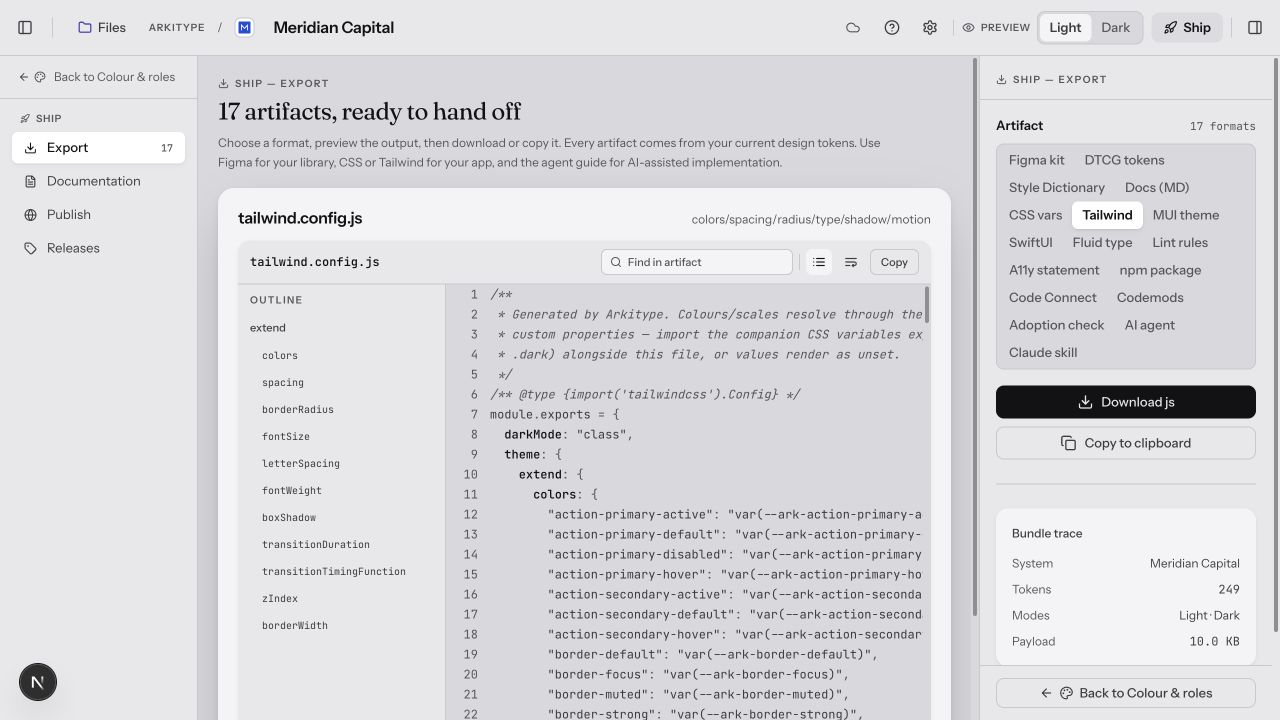
Open Ship → Export and choose an artifact in the right inspector. Download it or copy its content. Exports are snapshots: after editing Arkitype, export again and update the files in your project. Publishing updates the hosted styleguide separately.
 (opens the full-size image in a new tab)
- Figma
- Choose Figma kit, download its JSON and import it through Arkitype Figma Sync (opens in a new tab). This works without publishing. Or publish first and use the Figma sync link from Publish. The plugin can sync variables only or build the full kit.
- Plain CSS · the easiest first implementation
- Choose CSS vars. Save the downloaded file as
tokens.cssbeside the HTML example below. It declares values; your CSS decides which elements use them. This example assumes the default token names from the practice file. - Tailwind
- Download Tailwind and CSS vars. Load the CSS in your app; the generated JavaScript config references those variables. Merge its theme extension with your existing config. It is a JavaScript-config export; Tailwind v4 users need to load a legacy config explicitly or adapt it to their CSS-first setup. See the Tailwind @config reference (opens in a new tab) for the compatibility route.
- MUI
- Choose MUI theme. Add the generated module to your React project and use its exported Light or Dark theme with MUI’s ThemeProvider. Read the generated imports and exported names before wiring it up. Switching modes in Arkitype does not switch your running application automatically.
- Other pipelines and AI tools
- Use DTCG tokens for token-tool interchange, Style Dictionary for a build pipeline, or AI agent / Claude skill for a coding assistant. Read Export formats for every output and its boundaries. These artifacts still need integration and review in your project.
A first page using the CSS variables
Save this as index.html in the same folder as tokens.css, then open it in your browser. You should see a themed page and button. Change the HTML element to <html lang="en" class="dark"> and reload to check Dark. If you renamed tokens, replace the references with the names in your export.
<!doctype html>
<html lang="en">
<head>
  <meta charset="utf-8">
  <meta name="viewport" content="width=device-width, initial-scale=1">
  <title>Northwind practice</title>
  <link rel="stylesheet" href="tokens.css">
  <style>
    body {
      background: var(--ark-surface-base);
      color: var(--ark-text-primary);
      font-family: var(--ark-font-body), sans-serif;
      padding: var(--ark-space-4);
    }
    button {
      background: var(--ark-action-primary-default);
      color: var(--ark-text-on-action);
      border: 0;
      border-radius: var(--ark-radius-md);
      padding: var(--ark-space-3) var(--ark-space-4);
      font: inherit;
    }
    button:hover { background: var(--ark-action-primary-hover); }
    button:focus-visible {
      outline: 2px solid var(--ark-border-focus);
      outline-offset: 3px;
    }
  </style>
</head>
<body>
  <h1>My first system</h1>
  <button type="button">A themed button</button>
</body>
</html>
What this example proves
Component reference · all 90
Every component in the library, rendered live from the tokens — not a screenshot of one. Each entry opens into every variant, every interaction state, every size it ships in, and the complete inventory of what you can change about it: the functional options that decide what the component is, and the token bindings that decide how it looks — each one with the default it starts from.
This page is generated from the same schema the builder reads, so it cannot describe a component that doesn’t exist or miss a parameter that does. The usage notes are the ones that travel into the Figma kit and the Markdown handoff — same words, three destinations.
Reading a binding
kind:value, and the kind is the half worth reading: role: points at a semantic role, space: at a spacing step, radius: at a radius step. Two kinds are honest exceptions — px: and raw: hold a literal, which is what a transparent border or a 1px hairline actually wants. Properties marked per state carry one binding for each of default / hover / focus / active / disabled — that is how a hover darkens without anybody writing a hover colour twice.Loading the component library…
The token registry
The Tokens tab in the left rail is every primitive the file holds, editable from wherever you happen to be. It is not a second copy of anything: it writes to exactly the same values the areas do, so a ramp step changed here and the same step changed in Colour & roles are one edit made two ways.
Everything a scale is made of, editable without leaving the area you are in. It is the same data the areas write to — there is no second copy and nothing to keep in sync.
- 1. Eight sections, one per primitive kind
- Colours, spacing, radius, opacity, font families, font scale steps, elevation and motion. Each folds, and each says how many steps it holds while closed.
- 2. Add is a labelled pill, not a glyph
- Every section can be added to and says so. A new step is scrolled into view and flashed when it lands, so an add is never a thing that silently happened at the bottom of a long list.Removing a step is offered only where removing it is safe — the first eight spacing rungs and the two radius extremes are load-bearing for the component library.
- 3. Every value copies in one click
- The hex, the pixel value, the duration — whatever the row holds, ready to paste into whatever you are writing.
- 4. Density, in the same panel
- Compact, Standard and Spacious rescale the base spacing unit and the radius scale together — the same preset Spacing & layout sets, in the panel you are already in.
- 5. Arriving from somewhere else
- “Add or remove steps” on a primitive set in Variables opens this panel at that exact section and flashes it, so a jump lands somewhere you can see rather than somewhere you have to find.
- Colours
- Every family and every generated shade, with its hex. Add or remove a shade, and copy any value in a click.
- Spacing
- The base unit and every rung it multiplies out to. The first eight rungs are permanent — the component library binds to them — and anything past that is yours to add and remove.
- Radius
- The named radius ladder. “None” and “full” are the two ends and never move; everything between is a step you can pin, add to or remove.
- Opacity
- Eleven named steps, 0 through 100. A flat ladder rather than a generated curve, because a disabled control at 38% and a scrim at 60% are decisions rather than a progression — and any colour reference can carry one as its alpha.
- Font families
- The four roles — Display, Heading, Body, Mono — and any step that has pinned a family of its own. Every family listed here is a family the exports load.
- Font scale steps
- Each rung of the type scale with its computed size, its role and its weight, and a control to add a rung or remove one.
- Elevation
- The shadow levels, per mode. A level is a structured token — offset, blur, spread, colour, opacity — not a CSS string.
- Motion
- The three durations and the named easing curves, as free-text CSS timing functions.
Rhythm lives here too
Retiring a token
Open a token in the inspector and press Deprecate. It keeps working and keeps resolving; what changes is that the next release note says it is going, the exports mark it, and the system can write the rename rather than describe it.
The alternative is removing it, and a removal fails silently: var(--ark-old-name) with nothing behind it is a transparent background and an unstyled control, and CSS reports no error at all. A deprecation is the same verdict a release early, with the answer attached — which is why the replacement is a picker over tokens that exist rather than a text field.
Every token has exactly three shapes in consuming code — the custom property, the token() call, and a Tailwind utility — and Arkitype generated all three, so the codemod is a derivation rather than a guess. The npm package ships the list too, and warns once per name in development.
Variables: the table and the map
The Variables tab in the left rail replaces the Area canvas with every variable in the file at once — every ramp step, scale rung, semantic role, component token, and every component property you’ve bound. It isn’t a second copy of your tokens: an edit here lands in exactly the same place Colour & roles and Components write to.
The same variables as the table, drawn as the graph they actually are. Value flows left to right through four columns: a primitive holds a value, a semantic role points at a primitive, a component token points at a role, and a component property points at a token. Nothing on this canvas is a separate copy of your tokens — every edit lands in the same file as the Colour and Components areas.
- 1. Table / Map
- The same data, two ways. The table is for reading and bulk-editing values; the map is for seeing what depends on what.Both take over the canvas. Press Area in the rail and your area is exactly where you left it.
- 2. Sets and tiers, in the rail
- Every set in the file with its count, plus which tiers the map draws. Hide unused primitives to cut the noise down to what is actually wired.Columns appear and disappear from the canvas as you tick tiers.
- 3. Mode
- Which mode's values the cards show. A role resolves to a different primitive per mode — this is how you see which one.Every value on every card re-resolves. The wires can move too, because the target changes.
- 4. Links — Selected / Summary / All
- How much of the graph is drawn. Selected shows only the chain through what you clicked; Summary collapses each set-to-set relationship to one ribbon; All draws every wire.Start on Summary. All is honest, but on a full system it is a lot of string.
- 5. The columns are the tiers
- Left to right is always primitive → semantic role → component token → component property. A card's position tells you what kind of thing it is before you read a word of it.
- 6. A wire
- Click one to light up both ends and dim the rest. Click a card to bring its whole chain forward; click the background to let go.A wire that ends nowhere is an unused token — one of the things the map is for.
- 7. Getting around
- Scroll to pan, ⌘ or Ctrl + scroll to zoom, and the pill in the corner to reset. Click a row on a card to edit it right there; click a handle to follow the chain from it. Drag a card's handle onto a target to rebind it — one drag, undoable like any other edit.
Two views, switched top-left. Table is the everyday one: your sets down the left, a column per mode, a row per variable. Click any value to point it at another variable or type one in. Map is the same data as a graph, for the question a table can’t answer — what feeds this, and what breaks if I change it.
New set of variables — in the rail, on each tier heading in the table’s sets list, on each band’s header on the map, and at the foot of the map — starts an empty set, or drops in a ready-made one. Asking from inside a band opens the panel already on that tier. The ready-made sets (a focus ring, a disabled grey, a data table’s rules, a tooltip’s own colours…) arrive wired to your ramps and roles rather than to invented values, and land as a single edit, so one ⌘Z puts it back.
Value flows left to right through four lanes. Each lane has its own colour and a number, and both travel with it everywhere — on the map, in the rail, and in the inspector — so a variable is recognisable as the same thing wherever you meet it. The map draws those lanes one of two ways, and the toggle is in its top-right corner: Lanes gives each tier a single column in a fixed order, so a set is always where you last saw it and every connection runs cleanly between two columns — at the price of a map several screens deep. Packed wraps each tier into as many columns as it takes to land the whole system on the screen you’re reading it on — the fold depth is solved for your canvas’s shape, so it comes out deep and narrow on a tall panel and shallow and wide on a letterbox. The order is the same either way: down a column, then across. Cards you’ve dragged keep their nudge relative to their own slot, so switching between the two never piles them on top of each other.
- 1 · Primitives
- Raw values — the ramps and scales everything else is built from. They hold literals, so nothing can feed them. They’re also generated rather than typed, so Variables doesn’t pretend to edit them: every primitive set carries “Add / remove steps” (opens the Tokens panel at that scale) or “Edit in <area>” (tunes its values where they’re generated).
- 2 · Semantic roles
- Jobs, not values — what a colour is for, pointed at a primitive.
- 3 · Component tokens
- A component’s own names — not only its colours. A Button set carries its corner, its padding, its gap and its type alongside its fill, each pointed at the primitive scale of its own type (radius:md, space:4, text:sm), so everything a component is lives in one place.
- 4 · Component properties
- The end of the line — a real property on a real component. Every component in the library is here, each property on the binding it really renders from: the schema’s until you move it, yours after. Components you’ve customised open; the rest stay folded to a name. Their untouched default wiring isn’t drawn at rest — see “Default wiring” below.
The table
Sets down the left, grouped by those four tiers with a count each. Pick one and it fills the columns: a Name column, then one column per mode for a role or component token, a single read-only Value for a primitive, and Bound to for a component property.
- Rows group themselves
- Variables sharing everything but their last segment collapse under one heading — overlay-scrim and overlay-veil become an “overlay” heading with scrim and veil under it. Renaming the visible part keeps the prefix, so the grouping can’t quietly rewrite a name.
- A value states what it is
- A chip carrying a mark — a swatch for a colour, its type’s icon for anything else — and either the name it follows (an alias), its hex (a literal), or the step it names with the px it currently works out to. Aliases read as names on purpose: that’s the whole reason to alias.
- Clicking a value opens both ways to set it
- A free-text field on top — a ramp reference like brand-600, an @role, a raw hex, or a typed reference like radius:md — with a colour well beside it where a colour is what’s being held, and a searchable list of every variable that could legally feed this one below. The list only ever offers variables of the same type, so there’s no illegal link to recover from.
- Names, adds and deletes
- Rename a variable in place and every reference and component binding follows. Hovering a row offers copy and delete; the set header renames or deletes the whole set, and “+ Variable” adds to it — picking what the new one holds (a colour, a spacing step, a radius, a type size, a weight, a family, an elevation) before you name it.
Modes are columns, and you can add them
Light and dark are the two every system starts with, not the two it’s limited to. + Mode adds a column — a brand theme, a high-contrast pass, a print variant — and every variable in the file gains its own value in it. A new mode starts as a copy of an existing one rather than empty, because an empty column is every token in the file dangling at once — but it is a copy, not a link: the two are independent from the moment it exists, right down to their own elevation ramps.
A mode belongs to the file, not to one surface, so it is added and edited from either place that shows you columns: the set header here, and Add mode on the Semantic roles and Component tokens tables in Colour & roles. Both write the same thing — a column that appears everywhere the other one looks.
- The column header is the mode
- Its chevron opens rename, duplicate and delete — on the Variables table and on the Colour & roles tables alike. That’s deliberate: the place you notice you want another mode is while looking at the ones you have.
- Every mode stands on its own
- A mode is not a variant of Light or Dark. It owns its column of values and its own elevation ramp — Dusk tunes its own depth rather than borrowing Dark’s — and nothing flows between two modes after the one-time copy that seeds a new one.
- Reads as — Auto, Light or Dark
- The only question left for anything outside the token map (the frame a preview sits on, which end of a raw ramp is the wash) is whether a mode reads light or dark. Auto answers it from the mode’s own surface-base, so you never declare a parent; pin it by hand only when your surfaces don’t say.
- Light and Dark can’t be deleted
- They can be renamed, but not removed — not because other modes derive from them, but because the two are the file’s fixed export contract: the :root/.dark pair every CSS export writes, and the pair the contrast audit reports against.
- Every mode ships
- Extra modes export as [data-ark-mode="<id>"] blocks in the CSS, as their own Figma variable modes in the bundle, and as their own section in the generated docs. The preview switcher in the top bar lists them all.
Creating a set
New set of variables opens the same panel from everywhere it appears: the rail, the top of the table’s sets list, the + on each tier heading beside it, the New set button on each band’s header on the map, and the foot of the map. The two that sit inside a tier open the panel on that tier. Name an empty set (a Role set or a Component one), or take a ready-made one: Focus & overlay, Selection & highlight, Disabled, Badge, Table, Tooltip, Dialog, Navigation, Toast. There is no chart set: those colours are generated and measured on Colour → Contrast instead, and a preset writing the same --ark-chart-* names would have been a second answer to a question that already has one.
What “ready-made” actually means here
Reading the connections
Every alias you made is drawn. The exception is the one that matters: a component property still sitting on the binding its schema shipped with. On a stock file those are three quarters of every wire on the canvas — several hundred connections nobody chose, each crossing the whole picture to land on a folded card — and with them drawn there is nothing else to see. Every card and row stays on the map regardless; only the ink is held back, and it comes straight back when you point at a component, select a role that feeds it, or press the count in the Component properties band header.
What’s left is made readable by contrast rather than subtraction. Click a variable and its chain goes opaque and thick, plugged at the source and arrowed where it lands, while every other wire drops to a twelfth of its weight — and stays that way. Nothing you hover over afterwards takes the answer away; a pill at the top of the canvas names what you’re holding, counts how much of the file is in its chain, and lets go of it. So does Esc, and so does a click on bare canvas. Clicking a card’s header holds the whole set the same way.
A wire can be held too, and it’s the narrowest of the three: click one and it lights its own two variables — the one being followed, marked on the edge the wire leaves, and the one following it, marked on the edge it arrives at — while everything else on the map, including the rest of those two cards, drops back. That’s the question a single link is picked to answer: not what a variable reaches, but which two rows does this one join. A held wire keeps its Detach button parked on it in full, rather than as a dot that exists only while the pointer stays inside it, and the pill names both ends and offers the cut a second time. If either end is on a folded card, the pill offers to unfold it. In Selected view, holding a wire leaves that one link alone on the canvas.
Two other views for when the weave really is too much. Summary draws one ribbon per pair of sets: coloured by the lane its values come from, as thick as how many run along it, arrowed the way they travel, and labelled with that count. Twenty ribbons say what three hundred wires couldn’t. And a ribbon isn’t only a summary you point at — click one and it opens, listing every link it carries by name; each row jumps to the variable or cuts the link outright. Selected goes further and draws nothing at all until you pick something, which is the one to reach for on a very large file.
- Solid
- The alias holds in every mode the file has — the ordinary case.
- Dashed
- It doesn’t. A token pointing somewhere different in one mode draws a separate link for each group, landing side by side on the row, and the opened ribbon labels each with how many modes it covers.
- Links: All / Summary / Selected
- What’s drawn at rest. All is the default — every authored wire, with the held chain brought forward against the rest. Summary draws one ribbon per pair of sets instead, opening into wires wherever you point or click. Selected draws nothing until you pick a variable, then that one chain; it’s the lightest of the three on a very large file.
- Default wiring
- Off at rest, and the single biggest reason the map is readable. It’s the toggle in the Component properties band header — and the matching checkbox in the rail — and it turns the several hundred untouched schema bindings back on. Worth doing once to see the true shape of what a component library consumes; worth turning off again to work.
- Holding one link
- Click a wire. It goes thick and blue, the two variables it joins are marked on the sides it actually touches, and every other row and wire on the map — the rest of those two cards included — steps back. Its Detach button stays put while it’s held. Click it again, press Esc, or click bare canvas to let go; a drag that starts on a wire still pans the canvas, so only a click takes hold.
- Wires: Curved / Elbow
- How a connection is routed. Curved leaves and lands flat, so which row each end belongs to is unambiguous and a dense band fans out rather than stacking; it’s the default. Elbow runs out, down a shared vertical trunk, and back in with rounded corners — easiest to trace when there are a handful of wires between two cards, worst when three hundred share the trunk.
- Folding a card
- The chevron on any card header (or a double-click on it) collapses the card to its header, and every link into or out of it gathers onto that one point. Expand-all and collapse-all, in the same toolbar, do the whole file at once — collapsing everything is the fastest way to see the shape of a system. Which column a card sits in doesn’t change when you fold it, so opening one card never rearranges the rest of the map.
Wiring and unwiring
Every row carries a + handle on each side it can be joined on — left for what it follows, right for what follows it — and the handle does two things.
- Click it for the list
- A small menu opens beside the row holding every variable in the file that could legally take the link, grouped by set and searchable. On the right-hand handle they’re checkboxes: tick as many as you like and Connect wires them all in one press, as one edit and one undo. On the left-hand handle they’re single choices, because a variable follows exactly one source — pick it and you’re done. This is the one that scales: the list is the whole file, so the target doesn’t have to be on screen, or even drawn (a ramp step hidden by “Hide unused primitives” is offered here, and its card appears the moment something points at it).
- Or drag it onto a target
- Quicker between neighbours, and the gesture to use when you can already see where it’s going. While a link is in flight every row that could legally take it stays lit and the rest fade, so a drop is never a guess: the rule (a colour takes a colour, a primitive holds literals, a link can’t loop back on itself) is answered up front rather than after you release. Esc cancels.
Either way the edit lands in the mode the toolbar is showing and offers to spread to the rest — see Mode below.
Cutting one is the same gesture from three places: point at a wire, hold it (its Detach stays put and everything else gets out of the way), or use the row for it in an opened ribbon. Wherever it appears, that button sits on the stretch of the wire that’s in the open rather than at its exact middle, which on a full map is usually behind a card. On a token, a cut detaches the link and freezes the colour it currently resolves to, so the system looks identical the instant after. A component property still on its shipped binding has nothing to cut — there’s no stored value to remove — so it says so instead of offering a button that would do nothing; point it somewhere else to change it. The inspector does the same work in words — it states what the selected variable follows, offers a searchable list of everything that could legally feed it, and shows the whole chain in the direction the value travels. In the table, that same work is a click on the value.
One control worth knowing before you wire anything: Mode, in the map’s toolbar and at the top of the rail, decides which mode a new link writes to and which links are drawn. It opens on Light, because one mode is the clearer picture: a token whose modes disagree contributes one wire instead of one per mode, and the wire you are looking at is the wire you are editing. A link made that way lands in that one mode and its confirmation offers to spread it to the others — take the offer or don’t. All modes writes every mode at once, as before.
Getting around the canvas
- Pan and zoom
- Drag the background to pan, scroll to pan vertically, ⌘ + scroll to zoom. The zoom controls, Fit to view and Tidy up sit bottom-left.
- Finding one variable
- Search in the rail. On the map it flies the canvas to it; in the table it opens the set that holds it. Clicking a source or a dependent in the inspector does the same thing.
- Hiding what you’re not looking at
- The rail’s Tiers toggles drop a whole lane and individual sets have an eye toggle. “Hide unused primitives” is on by default and drops every ramp step nothing references yet — which is most of them on a fresh file; the Primitives band header says how many, and puts them back.
- Key
- The legend, bottom-right, holds the four lane colours and what each dash pattern means. It collapses, and stays collapsed.
Undo, redo, reset
⌘Z and ⇧⌘Z work across the whole workspace, not just this map, and a rapid gesture like scrubbing a slider collapses into one step. Reset this sitting, top-left of the canvas, puts every token back to how it stood when you opened Variables — and because it’s recorded like any other edit, one ⌘Z brings your work back if you pressed it by mistake.
Layout is a view preference
The accessibility engine
Contrast checking runs on real WCAG 2.x math — each colour’s sRGB channels are linearised and combined into a relative luminance, and two colours’ luminances produce a standard contrast ratio. Three thresholds apply depending on context:
Every check in the file runs this pipeline. The step worth knowing about is the second one: a ratio is always taken between two opaque colours, never between whatever the tokens literally store.
- 1. A curated pair, not every combination
- 17 curated role pairings — the surfaces a role actually renders text or a border on in the shipped preview — plus the state and border pairings whose tokens exist, and every text- or border-on-surface pairing a token group implies. Checking every colour against every other colour would produce hundreds of results nobody reads.Run in every mode the file carries: a stock light/dark file is 52 scored checks, plus 18 advisory ones reported but not scored; each extra mode adds 26 more. The Contrast audit tab shows the count for your file.
- 2. Translucency is flattened first
- A value like brand-600/40 is composited over what sits behind it — its declared background, or a white page if nothing else does — before anything is measured.A token that reads as pale pink on screen scores as pale pink, not as the saturated 600 its value names.
- 3. Real WCAG 2.x maths
- Each colour's sRGB channels are linearised and combined into a relative luminance; the two luminances give a standard contrast ratio. No approximation, no lookup table.
- 4. The threshold depends on context
- Normal text AA ≥ 4.5:1 / AAA ≥ 7:1. Large text AA ≥ 3:1 / AAA ≥ 4.5:1. UI components — borders, focus rings — AA ≥ 3:1, and no AAA tier exists for that context.The same pair can pass as a heading and fail as body copy. That is the spec, not a bug.
- 5. Warn, then let you decide
- A rebind that would drop a real pairing below AA names the pairing and the ratio and offers Use anyway / Cancel. Nothing is silently blocked, and nothing silently fails.
- 6. Declared backgrounds
- Name a background the derived pairings can't find — pure white, a brand fill, an @role that tracks the system — and every text and border token is checked against it too, in every mode.A declared background is pinned, so a one-click repair retargets the text and never moves it.
- Normal text
- AA ≥ 4.5:1, AAA ≥ 7:1
- Large text
- AA ≥ 3:1, AAA ≥ 4.5:1
- UI components (borders, focus rings)
- AA ≥ 3:1 — no AAA tier defined for this context
Rather than checking every colour against every other colour, Arkitype starts from a curated list of 17 real pairings — the surfaces a role actually renders text or a border on in the shipped preview — adds the interaction-state and border pairings whose tokens exist, and every text- or border-on-surface pairing a token group implies, in every mode the file carries. The Contrast audit tab shows the exact count for your file. Border pairings that are decoration rather than meaning — a card’s hairline, a callout’s edge — are reported as advisory: they show a ratio and a fix but don’t move the AA score. The check runs live on the Semantic roles table in Palette & tokens (with an inline warn-and-override on any change that would fail) and again as a static audit summary you can review before shipping.
Every ratio is taken between two opaque colours, never between whatever a token literally stores. A translucent value like brand-600/40 is composited over what actually sits behind it first — its declared background, or a white page if nothing else is behind it — so a token that reads as pale pink on screen is scored as pale pink, not as the saturated 600-shade its value names. Declared backgrounds extend the same pairing logic past the file’s own surfaces: name one — a hex, a ramp step, an @role — from the Contrast audit tab, and every text and border token is added to the audit against it, in every mode, exactly like a surface the system already owns.
Export formats
7 of the 17 — the ones with something to explain; the table below is the full list. Every one is compiled from the same token chain by the same code the app previews with, so none of them can drift from what you saw on screen. Two of them, though, are halves of one thing.
- 1. The system, compiled once
- Every artifact is generated from the live file at the moment you export — there is no separate build step to remember and no cached copy to go stale.
- 2. CSS variables + Tailwind config travel together
- The Tailwind config doesn't contain values — it references the custom properties in the CSS file. Ship one without the other and every utility resolves to nothing.Import the CSS file once, globally, then point Tailwind at it.
- 3. The Figma bundle needs the plugin
- On its own it is JSON. The companion plugin is what turns it into a Figma file with variables, components and documentation pages.Re-running it updates the same file in place rather than making a second one.
- 4. MUI resolves to concrete values
- Unlike the CSS and Tailwind pair, the MUI theme carries real numbers and hexes — MUI does its own contrast maths and cannot do it against a CSS variable.
- 5. The AI agent guide
- The same system written as a brief for a coding assistant rather than for a person: what the tokens are, what may not be invented, and what to do when a value is missing.It has to be attached, every session, by whoever remembers to.
- 6. The Claude skill is that guide, installed
- Identical reference, but it declares what it is for in its own frontmatter — so Claude loads it when the work turns out to be UI instead of waiting to be pointed at it. What sits above the reference is a procedure rather than a preamble: look for the component first, install the tokens once, wire every mode, audit your own output.Save it as ~/.claude/skills/<system>/SKILL.md for every project, or commit it under .claude/skills/ for one repo.
Style Dictionary, the npm package, Lint rules, Code Connect, Codemods and the Adoption check are each a folder rather than one file. Ship downloads each as one .txt in which every file starts with its path between two rules; split it into that folder before you use it.
| Format | File | What’s in it |
|---|---|---|
| Figma bundle | {name}-design-system.json | Two Figma variable collections — Primitives (single mode) and Semantics (one Figma mode per mode in your file, aliased to primitives) — plus a components array and a page per included component. Feed it to the companion plugin to build a full kit: cover, foundations, and one page per component with usage docs, variant grids, and token-bound layers. Re-running it updates the file in place. |
| Markdown handoff doc | {name}-handoff.md | In order: the consumption model, colour primitives, the full scale reference, the accessibility audit, a token dependency graph, the component inventory, the icons it uses, and implementation snippets. |
| CSS variables | {name}-tokens.css | A real :root + .dark custom-properties file, generated by the same compiler every preview frame in the app already reads from — nothing to fall out of sync. |
| Tailwind config | tailwind.config.js | Colours, spacing, radius, font sizes/weights, shadows, and transition durations/easings — each mapped to reference the CSS variables file, so import both together. |
| MUI theme | arkitype-theme.ts | Real createTheme() calls for light and dark with fully resolved values (MUI needs concrete numbers for its own contrast math, not CSS vars) — palette, spacing, shape, and typography. MUI’s own default shadow scale is left in place rather than emitting a mismatched array. |
| SwiftUI tokens | ArkitypeTokens.swift | One file with no dependencies, for an iOS or macOS target — colours, spacing, shape, stacking, whole text styles, elevation and motion. Light and dark are a single dynamic Color that resolves itself, so no view has to know which mode is showing. Four values are genuinely converted rather than renamed: line-height becomes SwiftUI’s between-lines spacing, em tracking resolves to points per style, and a CSS blur halves into a Core Graphics radius. Shadow spread has no SwiftUI equivalent and is folded into the radius with a note rather than dropped in silence. |
| AI agent guide | {name}-agent-guide.md | One self-contained Markdown file for attaching to an AI coding tool — Claude Projects, Cursor, Antigravity, and similar — as project context: imperative rules first, then every token already resolved, the full component contract (variants, states, do/don’t, accessibility), and the CSS variables file embedded whole, so nothing has to be looked up anywhere else. |
| Claude skill | SKILL.md | The same contract, installed rather than attached. Drop it in ~/.claude/skills/<system>/SKILL.md (or .claude/skills/ inside a repo) and Claude loads it by itself the moment the work turns out to be UI — the trigger is frontmatter in the file. Above the same resolved reference sits a procedure rather than a preamble: check for an existing component first, install the tokens once, wire every mode, and run a self-audit before calling anything done. |
| DTCG tokens | {name}-tokens.json | The W3C Design Tokens interchange format — the one artifact here that is not Arkitype speaking somebody else’s dialect. Every token with its $type, references kept as references rather than flattened to hex, and one file holding the primitives and every mode. Arkitype reads it back too, so a system can arrive from another tool and leave for one. |
| Style Dictionary | {name}-style-dictionary.txt | A project folder — the DTCG files plus a config, so one npx style-dictionary build turns them into CSS, SCSS, TypeScript, iOS and Android at once. For a team that already has a token pipeline and wants this system to feed it rather than replace it. |
| npm package | {name}-package.txt | An installable {name}-tokens/ package with a version on it — the only artifact here that has one, which is what turns “did the brand change land everywhere” from a shrug into one run of npm outdated. Its token names are a TypeScript union, so token("surface-bas") is a compile error rather than a transparent background nobody notices. Deprecated tokens warn once in development. |
| Fluid type | {name}-fluid.css | One clamp() per type step, so the scale interpolates between a phone and a monitor instead of being wrong at one of its two ends. Container sizes for every breakpoint beside it, and the logical-property substitutions — padding-inline-start rather than padding-left — that let the system be translated without being rewritten. |
| Lint rules | {name}-lint.txt | A stylelint and an ESLint config that carry this system’s own values, so a literal where a token exists becomes a warning that names the token. The rule a design system needs and almost never ships, because writing it by hand means keeping a second copy of every value. |
| Accessibility statement | {name}-accessibility.md | Generated from what was actually measured — every contrast pairing, the target sizes, the text-spacing headroom — including the part most statements leave out, which is everything a set of tokens cannot determine on its own. See the accessibility engine. |
| Code Connect | {name}-code-connect.txt | Figma’s Dev Mode shows a developer the design and a generic CSS dump — not the component in their codebase, not its real prop names, not the import. One file per component makes it show the actual component. The mapping is derived rather than transcribed: Arkitype named the Figma variants, so it knows that “Filled Tonal” in Figma is tonal in code. Two edits per file — your import path, and the node id. |
| Codemods | {name}-codemods.txt | A codemods/ folder: a dependency-free script that applies this system’s deprecations to a consuming codebase — the custom property, the token() call and the Tailwind class. Dry by default, and it prints the same report either way. Empty until something is deprecated, which is the ordinary state. |
| Adoption check | {name}-adoption.txt | A scripts/adoption.mjs that reads a consuming codebase and reports what share of its colour and length values go through a token — counting only the values this system has a token for, so a chart’s eleventh series is not a failure of adoption. Read-only, with a --min threshold for CI and the files to start with. |
| Published styleguide | a link, not a file | A read-only website of your system — foundations, every token, and a page per component with its live preview, states, variants, and usage docs. Anyone with the link can read it; no account, no install. See Publishing & sharing. |
The notation colours ship in
One setting decides how every colour is written when the system leaves: sRGB (hex — understood everywhere, and the default), Display P3 (the wider gamut Apple hardware and modern browsers render natively), or OKLCH (perceptually uniform, so lightness and chroma stay meaningful when an engineer edits them). It lives in Settings, beside the destination, and it changes nothing about the values you authored: the conversions are colorimetric, so a P3 or OKLCH export renders the identical colour in the notation the destination wants.
The setting changes how colours are written, never what they are. Every value in the file stays the sRGB hex you authored; the conversions are colorimetric, so the exported system renders the same colour in whichever notation the destination prefers.
- 1. The value you authored
- A hex, exactly as picked. Nothing about the file changes when the setting does — this is the source of all three rows.
- 2. Written three ways
- The same colour, converted per CSS Color 4. P3 can hold colours sRGB cannot; OKLCH keeps lightness and chroma meaningful when an engineer edits the value by hand.
- 3. Layered behind a feature query
- The hex is emitted first and the wide-gamut block follows inside an
@supports— and only the variables whose value actually changed, so the override block is colours and nothing else.An older browser reads the hex and stops; a modern one reads both and the last wins.
A wide-gamut export is layered rather than swapped. The hex is written first, and the converted values follow inside an @supports query carrying only the variables that actually changed — colours, never lengths or easings. An older browser reads the hex and stops; a modern one reads both and the second wins. Nothing has to be feature-detected by hand, and nothing renders as nothing.
About the SwiftUI destination
ArkitypeTokens.swift.Working together
A design system is rarely one person’s work, and it is almost never read only by the person who built it. A file can be opened by as many people as you invite, edited by several of them at once, commented on by anyone, and read as a handoff spec by the engineers who have to build from it — all in the same file, with no export step in between.
Added to the top bar the moment a file has a second person in it. Read left to right, it answers: who is here, what am I doing, is my work safe, how do I say something, where does a mention reach me, and who else can see this. The drawing is a crop: to the left of the faces are the panel switch, Files and the file name; between the bell and Share sit Help, Settings and Preview; Ship is last. A shared file shows no Autosaved cloud of its own — the sync glyph (3) says it instead.
- 1. Who's in the file
- One face per person, live. Each carries a colour derived from their account, so it is the same colour on your screen and theirs. Four faces, then a count — past that it stops being a roster and starts being a wall.Hovering a face says what they're doing and which area they're in. Clicking opens Share.
- 2. Design / Dev / Review
- What the file is for right now, without changing who you are. Dev opens the handoff inspector; Review is read-only with comments over it. Both refuse edits outright, keyboard shortcuts included.An editor can drop into Dev to read a spec with no risk of nudging a slider on the way past.
- 3. Sync status
- There is no save button. While all is well it is one glyph whose tooltip says the state in full: a cloud when saved, a spinner while syncing, a struck-through cloud with a count while offline. When edits haven't reached the server it becomes a button reading Not synced, with circling arrows; when a write was refused, Sync issue, with a warning triangle.Press either button to send the waiting edits again — the reason is on hover and focus.
- 4. Comments
- Opens the dock, badged with how many threads are still open. A new comment attaches to whatever you have selected without being asked — and the dock's own Comment button (or C) arms the canvas when the remark is about a place instead: click for a marker, drag for an area.That arming is dimmed on the Variables map and in the manual, where every node already has an anchor of its own.
- 5. History
- The version timeline: automatic checkpoints, versions you named yourself, and the raw list of recent changes underneath.
- 6. The bell
- Where a mention actually arrives. Present on the dashboard as well as in a file — the two moments a notification matters most are the two the room cannot reach you in.
- 7. Share
- Invite by email and set seats. It sits at the far right, beside Ship, and once a file is shared it carries the count, so you always know this file is not only yours.
Four seats
- Owner
- Whoever created the file. Everything an editor can do, plus inviting people, changing their seats, publishing and deleting. One per file.
- Can edit
- Changes the system, comments, saves and restores versions. What you give a design partner.
- Can comment
- Reads everything, writes comments and replies, and changes nothing. What you give a stakeholder reviewing a direction.
- Developer
- Reads the system and its handoff specs, and cannot leave Dev mode. The seat for the engineer who needs the values, not the controls — every token, binding and spec, nothing it can change, and nothing to switch into by accident.
Invite from Share in the top bar, by email. If they already have an account the file appears on their dashboard immediately; if they don’t, the seat waits for them and is theirs the first time they sign in. A file someone shared with you carries its seat as a badge on the dashboard card, so you know what you can do before you open it.
Three modes
The switch beside the avatars changes what the file is for, without changing who you are:
- Design
- The builder, exactly as it has always been. Available to editors and owners.
- Dev
- Handoff. The file goes read-only and an inspector opens: click a component and it lists each part, the token behind every property, what that token resolves to in every state, and the CSS — written against your variables rather than frozen hexes, so it keeps up when the system moves. An editor visits; a Developer seat lives here, with no switch to leave by.
- Review
- Read-only with the comment layer over it. Anyone with a comment seat or better.
Read-only means read-only
Editing at the same time
Everyone in a file sees everyone else’s changes as they happen, and the faces in the top bar say who is in and what they’re doing. Two people working on different things — a hue and a radius scale — both keep their work. Two people typing into the same value settle it the way every collaborative tool does: the last write wins. What that never costs you is the rest of the edit, because changes travel one value at a time rather than as a whole file.
Undo stays yours. ⌘Z steps back through what you did — it will never quietly reverse a colleague’s change.
Comments
A comment attaches to what you were looking at when you wrote it — a component, one part of a component, a token, a node on the Variables map, or an area — so “this is too tight” is never a mystery a week later. Threads carry replies, emoji reactions and images: paste a screenshot straight into the box, or drop a file on it.
A new comment attaches to whatever you are looking at, without being asked — asking someone to choose a target from a list before they can type is how you get a hundred threads all attached to “the file”. The chip above the box says what it picked, so the default is visible and overridable rather than magic.
- 1. A component, one part of one, or one property
- Select the Button and the thread is about the Button; select its label and the thread is about the label; select that label's colour and the thread is about the colour. The narrowest thing you clicked wins — which matters, because nobody says “the Button is wrong”, they say “the label colour is wrong”. When you haven't placed a marker, the dock tries these four in order, narrowest first: a component or its part, a token, a node on the map, an area.Clicking the chip on any thread takes the reader back to that exact part.
- 2. A token
- Anything in the registry, by name. The thread survives the token being re-bound, because it stores the name rather than the value it happened to have that day.
- 3. A node on the Variables map
- Every variable in the file is already an anchor of its own. This is also why the marker button is dimmed on the map — there is nothing there without an id.
- 4. An area
- The fallback when nothing narrower is selected: a remark about Colour as a whole, or about Type.
- 5. A mark on the canvas
- For the remark the others cannot hold — this gap, the rhythm across these three cards. Press Comment (or C), then click a spot or drag a box around what you mean: the shape follows the gesture rather than a choice you had to make first. Each marker is drawn in its author's colour, so two people's marks on one canvas tell apart before you open either.An area anchors to the items it was drawn around and is recomputed from where they are now, so it survives a rewrap, a scroll and a zoom — and every mark records the area, the component and the mode it was made in, so a remark about contrast is read back in the mode it was made in.
- 6. File
- The one thing that is never guessed for you. The dock's File button is a deliberate choice; once pressed it reads Selection, and the comment stays on the file until you press that to change it back.
For the remark none of those can hold — this gap, the rhythm across these three cards, here between the label and the field — press Comment in the comments panel (or C) and then either click the canvas or drag a box around what you mean. One control, not two: the shape of the mark follows the gesture rather than a choice you had to make before you had written anything. A click leaves a marker — a small speech bubble whose corner rests on the exact point, in the author’s colour, with its number; a drag leaves an area. Hovering either shows who said what without opening anything, and both come off the canvas the moment the thread is resolved.
An area anchors to the things it was drawn around, by their ids — the variant tile, the hover state — and the box is recomputed from where those are now, so it survives the gallery rewrapping at another width, the canvas being scrolled, and the studio’s own zoom. A marker records the item it landed on and sits at a fraction of that item. Only when nothing identifiable is underneath does it fall back to a fraction of the canvas.
Every mark also records the area, the component and the preview mode it was made in — a remark about contrast is read back in the mode it was seen in, and one drawn on Button is not redrawn on Checkbox. Marks belong on the Area canvas: on the Variables map the button is dimmed, because every node there already has an anchor of its own and a point floating over a graph you can pan would mean nothing a minute later.
Finding what was said, and closing it
An open thread is visible from the top of the rail without opening anything. The row that reaches it carries a speech-bubble chip with the number underneath it, and the same chip repeats down the tree: the count on Components decomposes into its lanes, and those into the components themselves, so a remark three levels down is visible from the top and one press from the thread itself. The chip is deliberately a bubble in the informational blue rather than an amber number — amber is what the rest of the app spends on broken links and failed contrast, and a review remark is not a defect.
Resolve takes a thread off the list and its mark off the canvas immediately — the change is applied in your own copy before it is written, so the button never appears to do nothing while a round trip completes, and it is put back if the write fails. A line stays behind saying where it went, with Undo beside it, and the panel’s Resolved filter keeps every closed thread — with who closed it and when — for the day somebody asks. Reopen one and it returns to the open list exactly as it was.
Mentions and references
Typing # mentions anything in the file and @ mentions a person. A # reference is a link, not a word — clicking it takes the reader to that component or token, so instructions land where the work is.
What gets stored for a reference carries an identifier, so it survives the thing it points at being renamed. None of that appears while you write: the box holds @Priya, highlighted, and the identifier goes back on only on the way to the database. A mention of somebody else reads in blue; a mention of you reads in amber, so the one question anyone scans a long thread for — is any of this addressed to me — is answered before they read a word. The line under the box names everyone the comment will actually reach, resolved against the file’s roster rather than against the names in your prose.
Type @ for a person and # for anything in the file. What gets stored carries an identifier, so a reference survives the thing being renamed — but none of that is your business while you write, and the box no longer shows it to you.
- 1. The picker
- @ searches the people on the file; # searches every component, token and area in it. Enter or Tab takes the highlighted one, Escape leaves the sigil as ordinary text.
- 2. A mention, in blue
- The name, highlighted — not the identifier behind it. Choosing Priya used to paste a raw account id into the middle of your sentence; it now reads as @Priya, and the id goes back on only on its way to the database.
- 3. A mention of you, in amber
- The one question anyone scans a long thread for is whether any of it is addressed to them. A second colour answers it before they read a word — and both colours are chrome tokens, so both hold their contrast in light and dark.
- 4. Who this will actually reach
- Resolved against the file's roster, not against the names in your prose. A mention of someone since removed from the file reads as what it is — a name in a sentence, not a message on its way.
- 5. A # reference is a link
- Clicking one takes the reader to that component, token or node, so “match this to the other one” stops being a sentence anyone has to decode. It stays grey on purpose: a destination, not an address.
- 6. Images, reactions, replies
- Paste a screenshot straight into the box or drop a file on it. Replies are flat by design — a review that nests four deep stops being a conversation, and the thing being discussed is already the branch.
- 7. Resolve
- Closes the thread and takes its marker off the canvas. Reopen it if it wasn't — the Resolved filter keeps every one of them.
Notifications
A mention nobody hears is not a mention. The bell collects three things and nothing else: someone mentioning you by name, a reply to a thread you started, and a file being shared with you. It sits in the chrome of both surfaces that have chrome — your dashboard and an open file — because the two moments a notification matters most are the two the room cannot reach you in.
Opening the bell is what marks its contents read; there is no per-row click to clear a badge. Every row goes somewhere — it opens the file, then the thread, then the thing the thread is about — including a file that was shared with you seconds ago and isn’t on your dashboard yet. Rows are yours to dismiss, and dismissing one removes it for you alone.
A mention nobody hears is not a mention. The bell sits in the chrome of both surfaces that have chrome — the dashboard and a file — because the two moments a notification matters most are the two the room cannot reach you in.
- 1. The badge
- How many are unread, capped at 9+. Opening the bell is the act of reading them: there is no per-row click to clear a count, which is busywork that teaches people to ignore the count instead.
- 2. What lands here
- Someone mentioning you by name, a reply to a thread you started, and a file being shared with you. Nothing else — an inbox that reports every edit is one you learn to skip.
- 3. Every row goes somewhere
- Clicking one opens the file, the thread, and the thing the thread is about, in that order. If the file was shared with you seconds ago and isn't in your list yet, it is fetched rather than you being told to reload.A row names its file first, because an inbox spans files and “which one” is the question every row has to answer.
- 4. Yours to throw away
- Dismiss a row and it is gone for you and nobody else — enforced in the database, not just hidden in the interface.
Version history, and working offline
History lets you compare and restore versions. A cached collaboration session can queue edits while offline; browser storage and a prior online visit are required.
- 1. Checkpoints, and versions you named
- One is taken automatically while anyone is working; the other you save yourself, usually right before a risky pass.
- 2. What restoring would cost
- Selecting a version says how many values differ from the file as it stands — before you touch anything.A checkpoint of the current file is saved first, and the restore is an ordinary edit, so ⌘Z (Ctrl+Z) undoes it.
- 3. The raw change log
- Underneath the timeline: what was altered, by whom, when — for the times a version isn't fine-grained enough.
- 4. The queue, and the sync glyph that reports it
- When storage is available, a cached collaboration file holds unsent edits in this browser. Reconnect and wait for sync; changes to the same value can require review. Preserve local work before reloading.The top bar says which state you're in. The quiet three are a glyph whose tooltip has the words: a cloud — saved, written and shared; a spinner — syncing, in flight; a struck-through cloud with a count — offline, held in your browser. The trouble two are buttons with their word on them: Not synced (circling arrows) — edits that haven't reached the server; Sync issue (a warning triangle) — a write was refused, its reason on hover. Press either to retry.
- 5. The .akt handover
- To carry pending collaboration edits, export an .akt from Settings → This file. It carries the system and anything not yet synced, in plain JSON.Open the same original file before importing. Import replays pending operations; it does not create a file or restore the whole snapshot. Review conflicts.
The History panel keeps a checkpoint every so often while anyone is working, and you can save a named version at any moment — before a risky pass is the usual one. Selecting a version says how many values differ from the file as it stands before you touch anything.
Restoring is safe in both directions: a checkpoint of the current file is saved automatically first, and the restore itself is an ordinary edit, so ⌘Z undoes it. Under the timeline is the raw list of recent changes — what was altered, by whom, when — for the times a version isn’t fine-grained enough.
In a collaboration session, Arkitype caches the open file and queues unsent edits in this browser when local storage is available. The production app can also cache its shell after an online visit. Reconnect and wait for the queue to sync; conflicting changes may need review. Offline copies are tied to this device and browser, and clearing site data removes them. See Saving & recovery for interrupted sessions and save failures.
To carry pending collaboration edits as a file, export an .akt from Settings → This file. It carries the system and anything not yet synced, in plain JSON. Open the same original file before importing it. Import replays the pending operations; it does not create a new design file or restore the whole snapshot. Review any conflicts with online edits. Sign in and open the file online on a second machine before depending on its offline cache.
Sharing a link versus sharing a seat
Documenting the system
Every other surface in this product compiles from the tokens, and that is a real property: a published styleguide matches the system at the moment it was published, because nothing in it is a hand-kept copy. It is also the reason a compiled-only styleguide is a token viewer. A generated page can say that Button’s background binds to action-primary. It cannot say that filled buttons are reserved for the save bar, that this empty state is the third version and here is a picture of the one it replaced, or that legal signed off on the disclaimer wording in March and it is not to be edited.
Ship → Documentation is where that half gets written. Every page the published site has — the overview, each foundation, the library index, one per component — takes authored content, and you can add pages of your own that nothing generates: getting started, voice and tone, how to contribute, a decision log.
Beside the generated content, never instead of it
The generated half is a block in your stream. It is there by default, you can move it to decide what a reader meets first, and you cannot delete it. That single rule is what keeps both properties at once: a component page is still guaranteed to carry its real live previews, its real states and its real variants, and no amount of authoring can produce a page that documents a component without showing it.
Quoting the system inside a page
The generated block is page-shaped: it renders this page’s compiled half, wherever you put it. That is right for a component’s own page and useless on a getting-started page, where a sentence saying “press the primary button” could not show one. So three block types quote the system by reference — a Component block holds a component id, a Token specimen holds the name of a ramp or a scale, and both are read from the file every time they render, in whichever mode the reader picked. Nothing is copied, so nothing can go stale: change the component and every sentence that shows it changes with it — in the editor at once, and on the published site at the next republish. A screenshot pasted into a document tool is wrong the day somebody edits the radius, and nobody finds out.
What a block can be
- Text
- Markdown — headings, lists, tables, links and inline code, with a toolbar and ⌘B / ⌘I / ⌘K so you never have to type the punctuation. Headings become anchors, so the published page’s own contents rail picks them up beside the generated ones. Type / on an empty one to turn it into any other block.
- Callout
- A framed aside in one of four tones: a note, something good to know, a caution, a flat don’t.
- Do / Don’t
- The pair every design system has and no token can generate, each line optionally carrying its own illustration. The word is always there as well as the colour, which is SC 1.4.1 and the same rule the colour-vision audit tells you to follow.
- Cards
- A row of two or three linked cards — what a front page is made of. Each takes a title, a line, a link and an optional thumbnail.
- Divider
- A rule between two runs of content.
- Component
- One component out of your library, live, in the middle of the paragraph about it — as a single instance the reader can try, as every state, or as every variant. It is a reference, not a copy.
- Token specimen
- One colour ramp, role group, type scale, spacing ladder, radius set, elevation ramp, motion table or chart palette, read straight from the file — so the values beside your argument about them are the real ones.
- Image
- A screenshot or a diagram. It is stored the way a logo is — bytes in the bucket, cached offline, published with the snapshot — rather than as a link to somebody’s Dropbox that will 404 in a year. The caption doubles as the alt text.
- Code
- A usage snippet, shown verbatim.
- Embed
- A Figma file or prototype, a Storybook, a Loom, a YouTube or Vimeo video, a CodeSandbox or a CodePen — framed in the page. Paste the address the app gave you and it is translated into its embed form; the frame is sandboxed and cannot navigate the tab it sits in.
Writing, and reading what you wrote
Three views, switched at the top of the surface. Write is the stream of blocks; Split puts the finished page beside it and pins it, so the result stays on screen while you edit the ninth block; Read is the page alone. All three render through the same component the published site uses, so none of them is an approximation. Blocks drag by their handle to reorder, duplicate in one press, and the inspector carries an outline of the page you are on.
Pages that already know what they are
Every design system has the same handful of authored pages — getting started, voice and tone, how to contribute, the accessibility commitment, a decision log — and every team writes them from nothing, late. New page offers each of them as a scaffold with the questions already in it, and an empty page can take one at any time. They are a starting point, not a form: delete anything that does not apply.
A reader sees the last publish
Publishing & sharing
Every other artifact is a file someone has to receive, open, and keep track of. Publishing skips all of that: Ship → Publish → Publish turns your system into a website at its own address, and you send the address. Whoever opens it needs no account, no login, and no Arkitype.
Every other artifact is a file somebody has to receive, open and keep track of. A published system is a website at its own address, and the address never changes.
- 1. Ship → Publish → Publish
- Three clicks and the system is a site. Whoever opens it needs no account, no login and no Arkitype.
- 2. It publishes a frozen copy
- The site shows the system exactly as it stood the moment you pressed Publish. Keep editing freely — nobody watches you work.Your edits reach the site only when you press Republish.
- 3. The link never moves
- Republishing updates the same address, so a link you sent last month still works and now shows the current system. Renaming the file doesn't move it either.
- 4. What's on the site
- Foundations with the values laid out to be copied, the full token set in every mode, and a page per component — the live component, its usage docs, and its Ready / Beta / Deprecated badge.
- 5. The Figma sync link
- The same publish gives the plugin something to pull from, so getting a system into Figma stops involving a downloaded file.
- 6. Unpublish
- One button and the link stops working. You can publish again later, to the same address.
What’s on the published site
- Foundations
- Your colour ramps, type scale, spacing, radius, elevation, and motion — the values themselves, laid out to be read and copied.
- The full token set
- Every primitive and every semantic role, in every mode the file carries.
- A page per component
- The live component — not a screenshot — with every state and variant, its usage documentation (what it’s for, when to use it, do / don’t, and an accessibility note), and its Ready / Beta / Deprecated badge.
- Everything you wrote
- Whatever you put on a page in Ship → Documentation, in the position you put it, plus any pages of your own. See Documenting the system above.
- Navigation that suits a hundred pages
- A sidebar of foundations and the library grouped by lane, with a filter; a contents rail for the page you are on; breadcrumbs, and previous/next along the same order the sidebar lists. Every page is its own URL, so any part of the system is a link you can send.
How publishing behaves
- It publishes a frozen copy
- The site shows the system exactly as it was the moment you hit Publish. Keep editing freely — your changes stay private until you press Republish. Nobody watches you work.
- The link never changes
- Republishing updates the same address, so a link you sent last month still works and now shows the current system. Renaming the file doesn’t move it either.
- Unpublish takes it down
- One button, and the link stops working. You can publish again later.
Who can see it — read this before you send it to a client
Publishing has one other job: it’s what unlocks the Figma sync link, the address the plugin pulls from so your designers never have to be sent a JSON file at all. Both links appear side by side in the Publish tab once you’ve published.
Releases, and the changelog a consumer can read
A release is not a version. A version answers “what did this look like on Tuesday”; a release answers the question somebody outside the file asks — what changed, and does it break me? Cutting one compares against the previous release rather than the previous save, because that is what the reader last saw, and it writes the note from the token diff and the edit log.
Semver here means what a design system needs rather than what a library needs: removing a token is major, changing what one resolves to is minor, adding one is patch. A removal is the one that fails silently — a var() pointing at nothing is a transparent background and an unstyled control, and CSS reports no error.
Publishing a system publishes its releases too, as a changelog at /p/<link>/changelog, with /p/<link>/releases.json beside it for a build step that wants to decide automatically — breaking is a boolean there rather than something to parse out of markdown. Only the notes and the token diff are published, never the snapshot a release holds: publishing is a grant over one version of the system, not over every historical state of it.
The Figma plugin
The Figma bundle is JSON — Arkitype Figma Sync is what turns it into an actual Figma file. It’s free on the Figma Community, and it’s the shortest path from a finished system to something your designers can draw with.
The bundle is JSON; the plugin is what makes it a Figma file. Pull is the one worth setting up as a habit — paste still works and needs nothing published.
- 1. Install once
- Open the Community listing, hit Open in Figma, and after that it lives in your Plugins menu for every file.
- 2. Pull — the recommended way
- Publish the system, copy the Figma sync link from Ship → Publish, and paste it into the plugin's Pull field. The plugin remembers the link, so after the first time it is one click.Every republish, pull again to catch up. No file to download, nothing to re-import.
- 3. Paste or drop the JSON
- The original route, still there, and it needs nothing published — useful when the system isn't public or you're working from a bundle somebody sent you.
- 4. What it builds
- A cover, a foundations page, two variable collections — Primitives in one mode, Semantics with a Figma mode per mode in your file, aliased to the primitives — and one page per included component with usage docs, variant grids and token-bound layers.
- 5. Re-running updates in place
- It edits the same file rather than making a second one, so the link your designers already have keeps working and simply catches up.
Getting a system into Figma — two ways in
There are two ways to hand the plugin your bundle. Pull is the faster one and the one worth setting up as your habit; paste/drop the JSON still works and needs nothing published.
- 1 · Install once
- Open the Community listing (opens in a new tab) and hit Open in Figma. After that it lives in your Plugins menu for every file.
- 2a · Pull (recommended) — needs a published system
- Publish the system first (see Publishing & sharing), copy the Figma sync link from Ship’s Publish tab, and paste it into the plugin’s Pull field. No file to download, no re-importing — and the plugin remembers the link, so after that it’s one click. Every republish, pull again to catch up.
- 2b · Or export the JSON directly
- Don’t want to publish? In Ship, pick the Figma kit tab, tick the components you want, and download the JSON (or copy it to your clipboard), then drop it into the plugin’s Import tab.
- 3 · Choose how much to build
- “Sync Variables” writes just the two variable collections. “Generate Design System File” builds the whole kit — cover, foundations, and a page per component.
What it builds
- Variables
- Primitives (single mode) and Semantics (one Figma mode per mode in your file, aliased to primitives) — real Figma variables, so a mode swap on a frame reskins everything bound to them.
- A page per component
- Usage docs, variant grids, component properties, elevation effect styles, and layers bound to tokens rather than pasted hex.
- Cover and foundations
- A titled cover page plus foundations pages for colour, type, space, shape, and motion.
Re-running is safe
Account, plans & team settings
- Settings → General
- Set the tool’s appearance, safety confirmations and feature tips. These preferences are separate from the system’s Preview modes.
- Settings → This file
- Change the open file’s destination, rhythm, client and other file settings. Built on manages inheritance; Offline copy handles .akt handover when a cached collaboration session is available.
- Settings → Plan
- Review your current plan and usage. Free allows 3 owned files; shared files do not count toward that ownership limit. Paid options depend on billing being configured. Review the displayed price and interval before checkout; Manage billing opens the billing portal for existing subscriptions.
- Settings → Team
- Organization membership and roles live here. Team membership is distinct from permission to an individual file; use Share on that file to check access. SSO and SCIM are planned and are not working sign-in or provisioning features.
- Settings → Account
- Download your data, sign out, or manage support access. Delete account is permanent and removes owned systems, publications and history. The server checks billing cleanup and shared organization ownership; transfer ownership where required before retrying.
For current plan limits and available prices, open Pricing. Read Trust & security for the controls and limitations that apply to the service.
Troubleshooting: what to do next
- I cannot sign in
- Check the email and password, or use Forgot password? and open the reset email. If confirmation is requested, complete it first. Google appears only when enabled. Complete the verification widget if shown; if it expires, retry. A rate-limit message needs a wait before another attempt.
- I only see “This needs a bigger canvas”
- Open the builder on a desktop or enlarge the window. Back to your files returns to the dashboard. The documentation and published styleguides are available on phones.
- A panel disappeared or I cannot find a control
- Use the panel switches at the ends of the top bar, or ⌘\ / Ctrl+\ to restore both. ⌘K / Ctrl+K opens the command palette. Help → Open the manual opens this reference.
- My files are missing or fail to load
- Check that you signed in with the account that owns or was invited to the file. Use the load-error retry, verify your connection, and check access with its owner. A loading error is not evidence of an empty account. Do not recreate or delete files to work around it.
- The save status stays pending or shows an error
- Follow Saving & recovery. Keep the tab and local copy until you know where your latest changes are stored. A published page can remain older than the editor even when saving works.
- A live-site import did not find the brand
- Sites may block fetching or load their styles dynamically. Use Blank system and enter the colour and loadable font yourself. Website import suggests starting values; it does not copy the website’s layouts or component library.
- The exported page has no theme
- Check that tokens.css loads, that your CSS uses names present in that file, and that you included CSS vars alongside the Tailwind config. Renamed tokens need matching references. Re-export after changing the system.
- Figma Pull or the public link looks old
- Save, then republish. Use the Figma sync link from Publish for Pull. A styleguide is a frozen snapshot until republished. To avoid publishing, download the latest Figma kit and import its JSON instead.
- New file, duplicate, invite or publish is blocked
- Read the message and check Settings → Plan for the relevant limit. File permissions and organization roles can also restrict actions. Duplicating creates another owned file. Retry only after resolving the stated limit or access issue.
Ask for help
The words you will see
- Design system / file
- The named collection of foundations, components, assets and guidance you are building. One dashboard file holds one system.
- Token / primitive
- A named value such as a colour shade, a spacing step, a font size or a duration. A primitive is a raw scale value from which roles and components draw.
- Ramp / seed
- A ramp is a family of related colour shades. Its seed is the colour Arkitype uses to generate that family.
- Semantic role / binding
- A role names a purpose, such as primary action or body text. A binding tells a component which token or role to read, so upstream changes flow through to it.
- Mode / appearance
- A mode is one set of values within your system, such as Light or Dark. Appearance themes the Arkitype tool itself.
- Specimen / Interactive
- A specimen shows a fixed state for comparison. Interactive lets you exercise the main component preview.
- Settled / Needs another look
- Settled records your review. A dependency change can mark it Needs another look. Neither status locks your file or gates Ship.
- Export / publication / release / version
- An export is a downloaded artifact. A publication is a frozen styleguide available by link. A release records a handoff and its changes. A History version is a checkpoint for comparing or restoring work.
- Seat / published link
- A seat gives an invited person a role in the real file. A published link lets anyone with the address read its frozen public snapshot without an account.
FAQ
- Is my work safe? Can I lose data?
- Arkitype is beta software and can still change under you — treat it accordingly. Export what matters from Ship regularly rather than relying on a single saved copy.
- How many design files can I have?
- As many as your plan allows — 3 on the free plan, more on the paid ones (see /pricing). Only files you own count; files shared with you don’t. Duplicating or creating past the limit is blocked with a clear message.
- What’s a “framework twin”, exactly?
- A starting point that copies a framework’s structure (radius, type ratio, density, native font, motion, shadows) but never its colour — so Material or Tailwind UI’s shape shows up without overwriting your brand.
- Can I start from a site I don’t control the code for?
- Yes — “From a live site” fetches it server-side and reads whatever colours and fonts are actually in its CSS. Sites that block bots or load styles dynamically may return little or nothing extractable.
- Does the tool’s own light/dark toggle affect my design system?
- No — Settings → General → Appearance only changes how the builder itself looks. Your system’s modes are configured separately: their values in Colour & roles or in Variables, their elevation in Shape & elevation. The Preview switch beside it walks the canvas through them, and dims itself on the surfaces that already show every mode at once.
- Where did the opacity slider go?
- Into the colour well. It used to be a slider parked on every colour row (Colour & roles and Variables alike), mostly sitting at 100% and costing the row its width — click the swatch and it opens a small picker with hue and opacity together. The row itself now shows a percentage chip only once a token isn’t fully opaque, and the value field still takes a typed /NN if you’d rather skip the picker entirely.
- The tour was five stops — where’s the rest of it?
- It comes to you. The tour covers the frame and stops there; every other part of the product introduces itself the first time you reach it, as one card with a picture on it, and never again after you press Got it. The ? in the top bar reopens the tour, lists every feature card with what it covers, and can show any of them on demand; Settings → General → Tips resets them all.
- The steps used to be numbered. Where did the numbers go?
- They were making a promise the work doesn’t keep. A number says something comes before and something comes after, and neither is true of a design system: you pick a palette, build a button, find the palette can’t carry a disabled state, and go back. That loop is the process, not a detour from it. The areas are grouped by what kind of decision they hold instead, and every one of them is open from the first minute.
- Two systems for one client — do I have to upload the logo twice?
- No. File both under the same client on the dashboard and each one offers the other’s logos and illustrations on the Logos & graphics surface, with the files they came from named beside each. Add one, add all of them, or remove one from this file without touching the other’s.
- Can I export in OKLCH or Display P3?
- Yes — Settings → This file → Colour space. The values you authored never change; the export writes them in the notation you picked, colorimetrically converted, with the hex still emitted first and the wide-gamut values layered behind an @supports query so an older browser is never left with nothing.
- I resolved a comment and it vanished. Where is it?
- Under Resolved in the comments panel, with who closed it and when. Resolving is meant to clear your list, so the thread leaves the open view and its mark leaves the canvas the instant you press it — the line that replaces it says where it went and offers Undo, and reopening puts it back exactly as it was.
- So where am I supposed to start?
- Anywhere with something in it you already know. A brand hex, a typeface the marketing site is already set in, a logo — start there, and let the rest arrive as it arrives. Nothing is gated and nothing has to be finished before something else opens. The one relationship the product does insist on is which values feed which, and it shows you that as a graph (Built from / Lands in, at the foot of every area) rather than as a queue.
- What’s the difference between the Tokens tab and the Variables tab?
- Same tokens, different question. Tokens is a registry that sits beside whatever area you’re on — quick edits and copying values without losing your place. Variables takes over the canvas to show all of them at once, and is where you go to ask what feeds what. Neither is a copy: an edit in either lands in the same place the areas write to.
- How do I add my own token or colour role?
- A single one: the Tokens tab’s Add controls, or the Semantic roles table in Colour & roles → Palette & tokens. A whole set at once: New set of variables in the Variables tab, which also offers ready-made sets (focus ring, disabled, table rules, and more) wired to your own ramps. See Variables.
- The Variables map looks like spaghetti. What do I do?
- Check the two things that keep it calm are still on, because between them they account for most of the wires on a full file: Draw default wiring should be off (the toggle lives in the Component properties band header and in the rail) and Hide unused primitives should be on. Past that, move Links off All — Summary replaces every wire with one ribbon per pair of sets, and Selected draws nothing until you click a variable. Then collapse the cards you aren’t reading; the collapse-all button folds every card to its header and gathers its connections onto one point. Elbow wires share a trunk between each pair of cards instead of fanning, which some files read better as.
- How do I disconnect one particular link?
- Click the wire. It’s held from then on — thick, blue, with both the variables it joins lit and the rest of the map faded — and its Detach button stays parked on it instead of appearing only while you keep the pointer inside a hairline. The pill at the top of the canvas names both ends and offers the same cut. If you can’t find the wire in the first place, click the variable at either end and read its chain, or switch Links to Selected so nothing else is drawn at all.
- I broke something. How far back can I go?
- ⌘Z covers the whole workspace and holds a long history. In the Variables workspace, Reset this sitting additionally returns every token to how it stood when you opened it — and that itself is undoable. For deleted files or accounts, there is no normal restore action; read the confirmation before proceeding.
- Why is there a warning icon on one of my fonts?
- It’s on a font role bound to a custom font stack (typed into the picker’s always-visible text field) that isn’t installed on this device. Arkitype can only auto-load fonts from the Google Fonts list — it has no file to fetch for a custom entry, so it only renders as chosen wherever that exact font already happens to be installed. Open the picker: if the name is close enough to a real Google Font, one click switches to it; otherwise keep it and self-host it — every export scaffolds the @font-face rule for you.
- What can I export to?
- 17 artifacts, among them a Figma bundle, CSS variables, a Tailwind config, an MUI theme, SwiftUI tokens, DTCG tokens and Style Dictionary, an npm package, a Markdown handoff doc, an AI agent guide for tools like Claude or Cursor, and a Claude skill that installs the system into Claude itself — Export formats above lists every one. Publishing is separate: Ship → Publish puts a read-only styleguide at a link.
- How do I get the system into Figma?
- Install Arkitype Figma Sync (opens in a new tab) from the Figma Community (free), then feed it the JSON from Ship — see The Figma plugin.